

Introduction
Your Flutter app works perfectly on mobile. You compile it to web, deploy it, and users immediately report bugs you never saw: buttons that don't respond to clicks, forms that fail validation, navigation that breaks browser history.
Flutter's flutter_test package caught nothing. It tests widgets in isolation, not how browsers render them. Real users don't experience widgets. They experience HTML, CSS, and JavaScript fighting with Flutter's canvas rendering.
Testing Flutter web apps with Playwright changes the game. This guide shows you exactly how to test your Flutter web application the way users experience it: in real browsers (Chrome, Firefox, Safari), with real DOM interactions, dealing with Flutter's unique shadow DOM and canvas rendering challenges. You'll learn how to set up Playwright for Flutter web, handle the architectural differences from standard web apps, and write tests that actually catch production bugs.
Why Playwright for Flutter Web Testing?
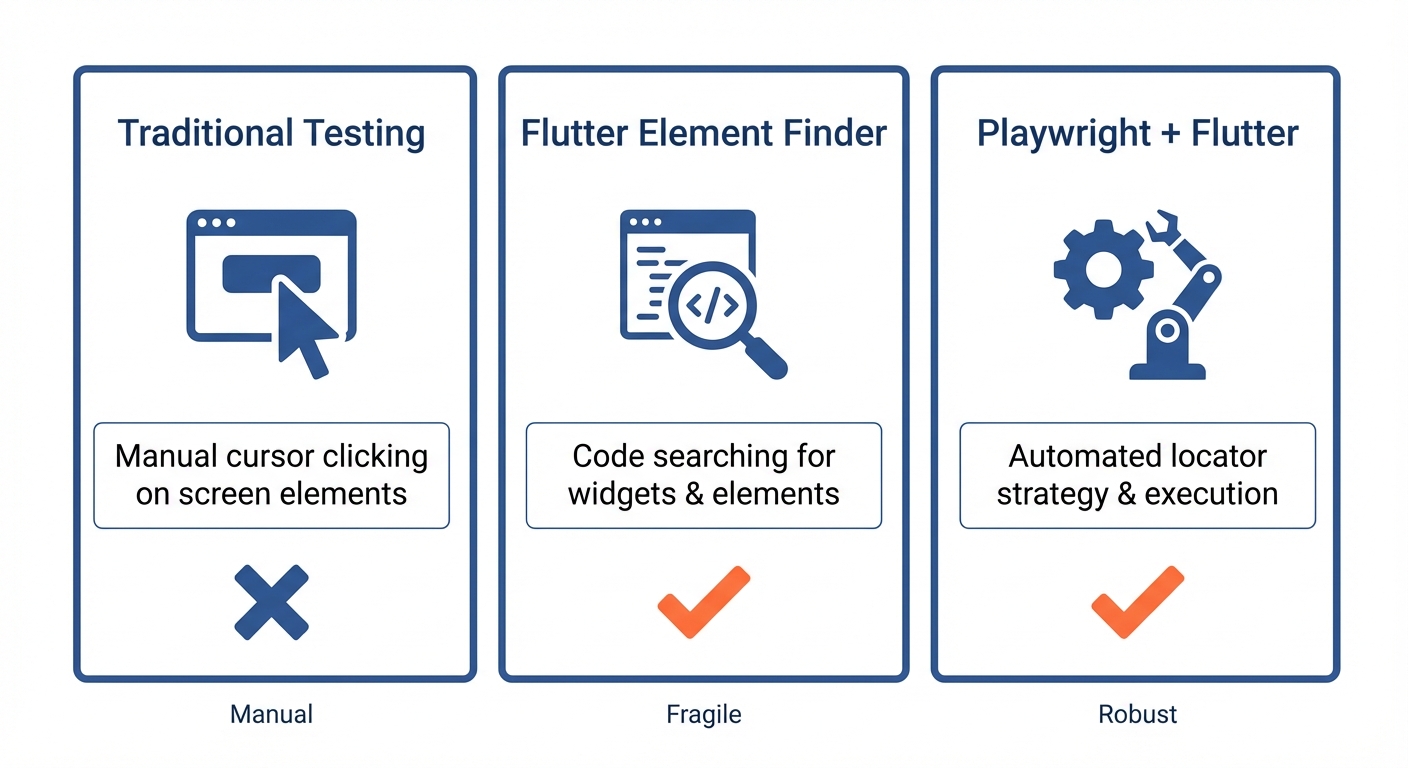
Flutter offers flutter_test and integration_test packages. They're excellent for widget testing and cross-platform integration tests. They catch logic errors in your Dart code. A button's onPressed handler fires, state updates, widgets rebuild.
Then you compile to web. The same code that worked perfectly in mobile suddenly breaks in browsers. Why? Because Flutter web isn't rendering native widgets anymore. It's rendering to HTML elements or canvas, creating shadow DOM, and interacting with browser APIs. Your widget tests never saw this transformation.
Playwright tests the actual output. It runs your compiled Flutter web app in Chrome, Firefox, and Safari. It interacts with the rendered HTML/canvas just like users do. When it finds a bug, you know it's a bug web users will encounter.
When to use each approach:
Flutter's integration_test works across all platforms (mobile, web, desktop) and tests widget behavior directly. Use it for cross-platform logic and widget interactions. Playwright is web-specific but catches browser-related issues: how your Flutter app renders in different browsers, handles real network conditions, manages browser history, and responds to actual mouse and keyboard events. You need both. integration_test gives you widget coverage. Playwright gives you browser confidence.
For Flutter web teams who want E2E coverage without maintaining Playwright scripts, Autonoma reads your codebase and generates tests automatically — AI agents handle browser interactions and adapt when your UI changes.
Understanding Flutter Web Architecture
Before writing tests, you need to understand what you're testing.
Flutter's Web Rendering Modes
Flutter web uses different rendering approaches depending on your configuration.
CanvasKit renderer uses WebAssembly and WebGL to render everything to an HTML canvas. Your entire UI becomes pixels on a canvas element. This provides the most consistent rendering across platforms (looks identical to mobile), but makes traditional DOM testing nearly impossible. Elements don't exist in the DOM as separate nodes. They're just painted pixels.
HTML renderer converts Flutter widgets to HTML elements and CSS. Buttons become <button> tags, text becomes <p> tags. This creates a more testable DOM structure. Elements exist as real HTML nodes you can query and interact with.
Auto mode (default) chooses the renderer based on the device. Mobile browsers typically get CanvasKit for better performance. Desktop browsers get HTML for better accessibility and smaller download size.
Check which renderer your app uses:
flutter run -d chrome --web-renderer html
flutter run -d chrome --web-renderer canvaskit
For Playwright testing, HTML renderer is significantly easier to work with. If your app targets web primarily, consider forcing HTML renderer in production or at least for your test environment.
Shadow DOM and Flutter Web
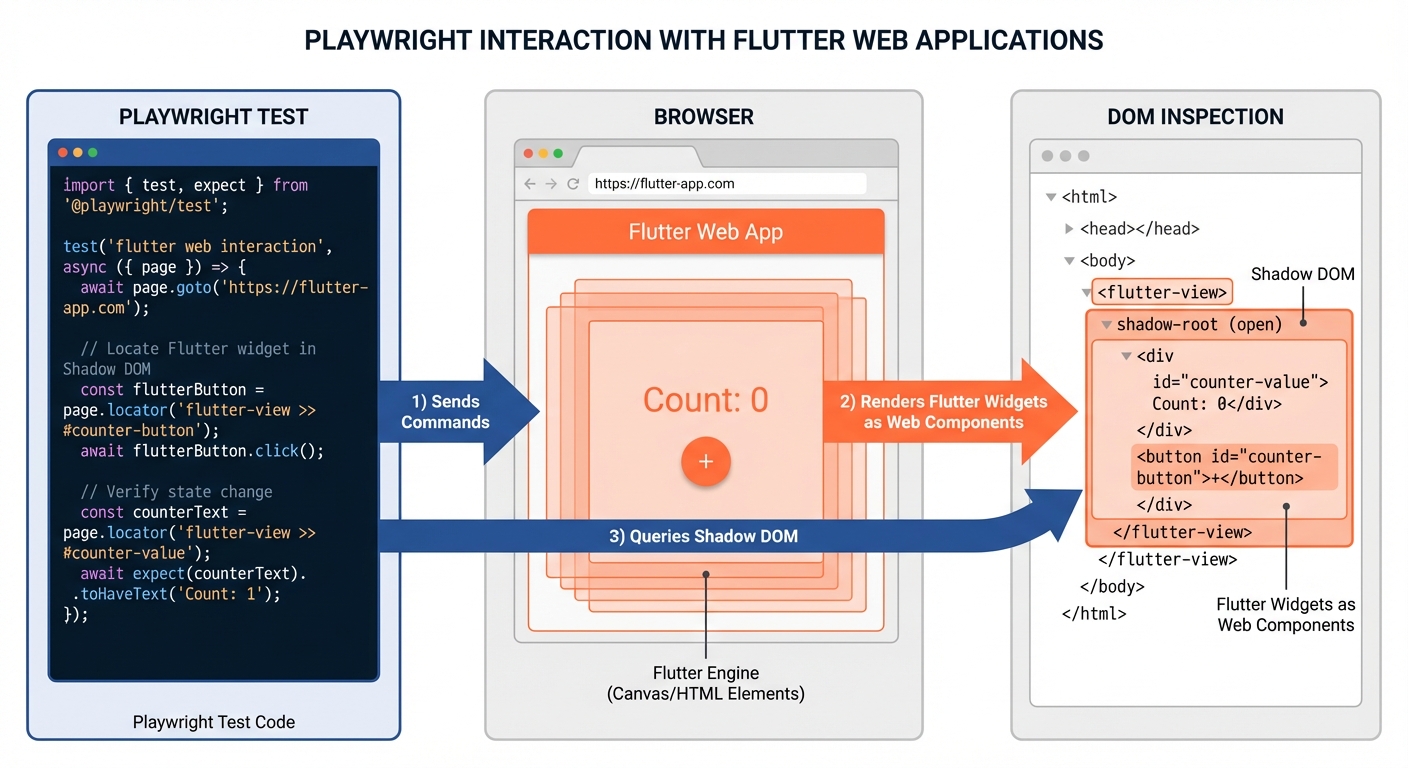
Flutter web creates shadow DOM boundaries to isolate its rendering from the rest of the page. Your Flutter app typically renders inside a shadow root attached to a host element.
This creates a testing challenge. Standard DOM queries can't cross shadow boundaries. If your Flutter app renders inside #root with an attached shadow root, a query like document.querySelector('button') returns nothing. The button exists inside the shadow DOM, invisible to the outer document.
Playwright handles this automatically in most cases. Its locator API can pierce shadow DOM by default. But understanding the architecture helps when debugging why certain selectors don't work.
Flutter Web vs Traditional Web Apps
Traditional web apps have a clear DOM hierarchy where every element is queryable. Flutter web apps have layers. The top layer is your HTML page. Below that, Flutter's framework creates structure. Below that, your widgets render to either canvas or HTML elements. Below that might be platform views (embedded HTML content).
For testing, this means:
Selector strategies that work for React or Vue might fail for Flutter. You need to think about how Flutter compiles widgets to web elements. A Flutter ElevatedButton might become a <button> tag with HTML renderer, or just painted pixels on canvas with CanvasKit.
Accessibility features become critical. With CanvasKit, the only way to locate elements is through semantic properties (labels, roles, text content). Flutter's semantic tree provides this information to screen readers and, helpfully, to your tests.
Setting Up Playwright for Flutter Web
Installation and Configuration
First, ensure your Flutter web app builds successfully:
flutter build web --web-renderer htmlThis creates a production build in build/web/. For development testing, you can run the dev server:
flutter run -d chrome --web-renderer htmlNow install Playwright in a separate directory (or in your Flutter project root if you prefer):
npm init playwright@latestConfigure Playwright to work with your Flutter web server. Open playwright.config.ts:
import { defineConfig, devices } from '@playwright/test';

export default defineConfig({
  testDir: './tests',
  fullyParallel: true,
  forbidOnly: !!process.env.CI,
  retries: process.env.CI ? 2 : 0,
  workers: process.env.CI ? 1 : undefined,
  reporter: 'html',

  use: {
    baseURL: 'http://localhost:8080', // Flutter web dev server default port
    trace: 'on-first-retry',
    screenshot: 'only-on-failure',
  },

  // For dev server (manual start)
  // You'll run `flutter run -d chrome --web-renderer html` separately

  // For production build with simple HTTP server:
  webServer: {
    command: 'npx http-server build/web -p 8080',
    url: 'http://localhost:8080',
    reuseExistingServer: !process.env.CI,
    timeout: 120000,
  },

  projects: [
    {
      name: 'chromium',
      use: { ...devices['Desktop Chrome'] },
    },
    {
      name: 'firefox',
      use: { ...devices['Desktop Firefox'] },
    },
    {
      name: 'webkit',
      use: { ...devices['Desktop Safari'] },
    },
  ],
});Important: The webServer configuration assumes you've built your Flutter app and serve the static files. Alternatively, you can manually start flutter run in development and set reuseExistingServer: true.
Project Structure
Create a tests directory for your Playwright tests:
flutter-web-app/
├── lib/
├── build/web/
├── tests/
│   ├── auth/
│   │   └── login.spec.ts
│   ├── navigation/
│   │   └── routing.spec.ts
│   └── homepage.spec.ts
├── playwright.config.ts
└── package.json
Your First Flutter Web Test
Create tests/homepage.spec.ts:
import { test, expect } from '@playwright/test';

test('Flutter app loads and displays title', async ({ page }) => {
  await page.goto('/');

  // Wait for Flutter to initialize
  await page.waitForSelector('flt-glass-pane', { timeout: 10000 });

  // Verify app loaded (adjust selector based on your app)
  await expect(page.locator('text=Welcome')).toBeVisible();
});
The flt-glass-pane selector is Flutter-specific. It's a div that Flutter creates during initialization. Waiting for it ensures Flutter finished loading before you start testing.
Run your first test:
npx playwright testLocating Flutter Web Elements
This is where Flutter web testing gets tricky. Traditional CSS selectors often fail because Flutter's rendering doesn't create predictable class names or IDs.
Text-Based Locators
The most reliable approach for Flutter web is text content. If a button displays "Submit", locate it by that text:
await page.locator('text=Submit').click();
// Or more specific
await page.getByText('Submit').click();
This works regardless of rendering mode because Flutter's semantic tree always includes text content for accessibility.
Accessibility-Based Locators
Flutter widgets support semantic labels. Use them:
// In your Flutter widget
Semantics(
  label: 'Login Button',
  button: true,
  child: ElevatedButton(
    onPressed: _handleLogin,
    child: Text('Login'),
  ),
)
Then in Playwright:
await page.getByRole('button', { name: 'Login Button' }).click();Playwright's accessibility locators (getByRole, getByLabel) work because they query the accessibility tree, not just the DOM.
Test IDs for Flutter Web
Add custom attributes to make elements testable. In HTML renderer, Flutter can expose data attributes:
// Add semantics identifier
Semantics(
  identifier: 'email-input',
  child: TextField(
    decoration: InputDecoration(labelText: 'Email'),
  ),
)
Then query using Playwright's test ID locator:
await page.locator('[data-semantics-identifier="email-input"]').fill('[email protected]');Note that the exact attribute name depends on how Flutter exposes semantic identifiers in the rendered HTML. Inspect your app's DOM to see what attributes are available.
Handling Canvas-Rendered Elements
With CanvasKit, elements are pixels on canvas. You can't click a specific button by querying the DOM. Flutter's semantic tree saves you.
Strategy: Use Flutter's semantic labels and ARIA attributes. Even with canvas rendering, Flutter generates an invisible semantic layer for accessibility. Playwright can interact with this layer.
test('interacts with canvas-rendered button', async ({ page }) => {
  await page.goto('/');
  await page.waitForSelector('flt-glass-pane');

  // Click using semantic label (works even with canvas)
  const loginButton = page.getByRole('button', { name: 'Login' });
  await loginButton.click();

  // Verify navigation or state change
  await expect(page).toHaveURL('/dashboard');
});
This works because Playwright's accessibility queries interact with the semantic tree, not the visual pixels.
Piercing Shadow DOM
If you need to query inside shadow roots explicitly:
// Automatic shadow DOM piercing (Playwright default)
await page.locator('button').click();

// Explicit shadow DOM traversal if needed
await page.locator('flt-glass-pane >> button').click();
The >> operator tells Playwright to pierce shadow boundaries. Usually, this happens automatically, but it's useful when you need fine-grained control.
Testing Flutter Web Features
Testing Navigation and Routing
Flutter web uses its own routing system (Navigator, GoRouter, etc.). These update the URL and render different pages. Playwright can test this:
test('navigates through app routes', async ({ page }) => {
  await page.goto('/');

  // Wait for Flutter initialization
  await page.waitForSelector('flt-glass-pane');

  // Click navigation link
  await page.getByText('Products').click();

  // Verify URL updated
  await expect(page).toHaveURL('/products');

  // Verify content changed
  await expect(page.getByText('Our Products')).toBeVisible();

  // Use browser back button
  await page.goBack();
  await expect(page).toHaveURL('/');
});
Flutter's web routing should update the browser URL. If your routes don't appear in the URL bar, your users can't bookmark or share links. Test that URLs change correctly.
Testing Forms and User Input
Flutter's TextField widgets render differently in HTML vs CanvasKit. With HTML renderer, they become actual input elements:
test('user fills and submits form', async ({ page }) => {
  await page.goto('/signup');
  await page.waitForSelector('flt-glass-pane');

  // Find inputs by label text or placeholder
  const emailInput = page.getByLabel('Email');
  await emailInput.fill('[email protected]');

  const passwordInput = page.getByLabel('Password');
  await passwordInput.fill('securePass123');

  // Submit form
  await page.getByRole('button', { name: 'Create Account' }).click();

  // Verify success
  await expect(page.getByText('Account created')).toBeVisible();
});
For CanvasKit: Input fields get focus, and you can type text using page.keyboard.type(). But first, you need to focus the element using its semantic label:
test('fills form with CanvasKit renderer', async ({ page }) => {
  await page.goto('/signup');
  await page.waitForSelector('flt-glass-pane');

  // Focus input using semantic label
  await page.getByLabel('Email').click();
  await page.keyboard.type('[email protected]');

  await page.getByLabel('Password').click();
  await page.keyboard.type('securePass123');

  await page.getByRole('button', { name: 'Submit' }).click();
});
Testing State Management
Flutter state (Provider, Riverpod, Bloc, etc.) updates the UI. Test what users see after state changes:
test('counter increments when button clicked', async ({ page }) => {
  await page.goto('/counter');
  await page.waitForSelector('flt-glass-pane');

  // Initial state
  await expect(page.getByText('Count: 0')).toBeVisible();

  // Trigger state change
  await page.getByRole('button', { name: 'Increment' }).click();

  // Verify UI updated
  await expect(page.getByText('Count: 1')).toBeVisible();

  // Multiple clicks
  await page.getByRole('button', { name: 'Increment' }).click();
  await page.getByRole('button', { name: 'Increment' }).click();

  await expect(page.getByText('Count: 3')).toBeVisible();
});
You're not testing Provider or Bloc directly. You're testing that state changes cause the correct UI updates.
Testing Async Operations
Flutter web apps make HTTP requests using http or dio packages. These compile to browser fetch/XMLHttpRequest. Playwright can intercept them:
test('displays data from API', async ({ page }) => {
  // Mock API response
  await page.route('**/api/users', async (route) => {
    await route.fulfill({
      status: 200,
      contentType: 'application/json',
      body: JSON.stringify([
        { id: 1, name: 'Alice Johnson' },
        { id: 2, name: 'Bob Smith' },
      ]),
    });
  });

  await page.goto('/users');
  await page.waitForSelector('flt-glass-pane');

  // Wait for loading to complete
  await expect(page.getByText('Loading...')).not.toBeVisible();

  // Verify data appears
  await expect(page.getByText('Alice Johnson')).toBeVisible();
  await expect(page.getByText('Bob Smith')).toBeVisible();
});
Set up API mocks before navigating to the page. This ensures the route is ready when Flutter makes the request.
Common Challenges and Solutions
Flutter Hasn't Finished Loading
The most common mistake: testing before Flutter initializes. Symptoms include selectors timing out or finding nothing.
Solution: Always wait for Flutter's glass pane element:
// ❌ WRONG - Tests immediately, Flutter might not be ready
test('tests too early', async ({ page }) => {
  await page.goto('/');
  await page.getByText('Welcome').click(); // Times out
});

// ✅ CORRECT - Waits for Flutter initialization
test('waits for Flutter', async ({ page }) => {
  await page.goto('/');
  await page.waitForSelector('flt-glass-pane', { timeout: 10000 });

  // Now Flutter is ready
  await page.getByText('Welcome').click();
});
Alternatively, wait for a specific element unique to your app:
await page.goto('/');
await page.waitForSelector('text=App Loaded', { timeout: 10000 });
Elements Not Found with CanvasKit
Canvas rendering means no DOM elements. Traditional selectors fail.
Solution: Use semantic locators exclusively. Ensure your Flutter widgets have proper semantic labels:
// Add to all interactive widgets
Semantics(
  label: 'Submit Form',
  button: true,
  child: ElevatedButton(
    onPressed: _submit,
    child: Text('Submit'),
  ),
)
Then query by role or label:
await page.getByRole('button', { name: 'Submit Form' }).click();Shadow DOM Blocking Queries
Some Flutter web apps create deep shadow DOM hierarchies. Standard queries can't reach nested elements.
Solution: Use Playwright's shadow DOM piercing with the >> combinator:
// Pierce one shadow boundary
await page.locator('flt-glass-pane >> button').click();

// Pierce multiple levels
await page.locator('flt-glass-pane >> flt-semantics >> button').click();
Or let Playwright handle it automatically by using semantic locators, which traverse shadow DOM by default.
Timing Issues with State Updates
Flutter rebuilds widgets asynchronously. Use Playwright's auto-waiting assertions instead of checking values immediately:
// ✅ CORRECT - Auto-waits for text to update
test('waits for state update', async ({ page }) => {
  await page.goto('/counter');
  await page.getByRole('button', { name: 'Increment' }).click();
  await expect(page.getByText('Count: 1')).toBeVisible();
});
Hot Reload Breaking Tests
Use production builds for testing. Run flutter build web --web-renderer html and serve with npx http-server build/web -p 8080. Hot reload is for development, not automated testing.
Cross-Browser Rendering Differences
Flutter web renders differently across browsers. Test in all browsers using Playwright's projects configuration in playwright.config.ts. Run npx playwright test --project=chromium (or firefox, webkit) to test specific browsers.
Debugging Flutter Web Tests
Run tests in debug mode with npx playwright test --debug. The inspector pauses before each action and highlights elements.
Use await page.pause() in your test to open DevTools and inspect Flutter's DOM structure. Look for flt- prefixed elements and semantic attributes.
Enable trace viewer with trace: 'on-first-retry' in your config. When tests fail, run npx playwright show-trace trace.zip to see screenshots, network requests, and DOM snapshots at each step.
Best Practices for Flutter Web + Playwright
Always wait for Flutter initialization: Use await page.waitForSelector('flt-glass-pane') before interacting with the app.
Prefer HTML renderer for testing: It creates a more testable DOM. If your app must use CanvasKit in production, consider HTML renderer for test environments.
Use semantic locators exclusively: Text content, ARIA labels, and roles work across both rendering modes and survive DOM changes.
Add Semantics widgets to all interactive elements: This makes them accessible to screen readers and to your tests.
Test in multiple browsers: Flutter web behaves differently across browsers. Don't assume Chrome-only testing is sufficient.
Mock APIs before navigation: Set up page.route() before page.goto() to ensure routes are ready when Flutter makes requests.
Use production builds for stable tests: Development mode with hot reload can interfere with automated tests. Build once, test many times.
Don't test Flutter internals: Test what users see and do. Don't verify that Provider updated correctly or that Bloc emitted the right event. Verify that the UI updated correctly.
Conclusion
Testing Flutter web apps with Playwright is different from testing React or Vue, but it's absolutely achievable. You now understand Flutter's web rendering architecture (HTML vs CanvasKit), how to handle shadow DOM and accessibility trees, the best locator strategies for Flutter web, and how to test navigation, forms, state management, and async operations.
The key insight: Flutter web exists at the intersection of Flutter's widget system and browser DOM. Your tests need to work with both layers. Use semantic locators that query the accessibility tree, not just the DOM. Wait for Flutter's initialization before testing. Choose HTML renderer when possible for easier testing.
Start with one critical user flow (login, checkout, main navigation). Write a test. Run it in all three browsers. Watch it catch browser-specific bugs your widget tests never saw.
Next steps:
- Convert your Flutter app to HTML renderer for testing:
flutter build web --web-renderer html - Add Semantics widgets to all interactive elements
- Write one Playwright test for your most important user flow
- Set up CI to run tests on every commit
- Consider our approach to autonomous testing for even less maintenance
Resources:
Testing Flutter web apps doesn't have to be painful. With the right strategies and tools, you can achieve the same confidence in your web builds as you have in mobile.
Frequently Asked Questions
Yes. Playwright can test Flutter web apps by interacting with the rendered HTML elements (with HTML renderer) or the accessibility tree (with CanvasKit renderer). While Flutter web has unique challenges like shadow DOM and canvas rendering, Playwright's locator API handles these through accessibility-focused selectors and shadow DOM piercing.
HTML renderer is significantly easier to test because it creates actual DOM elements. CanvasKit renders everything to canvas, making traditional selectors useless. For production, choose based on your needs (CanvasKit for consistency, HTML for SEO). For testing, use HTML renderer if possible, or rely heavily on semantic locators with CanvasKit.
Use text content, ARIA labels, and semantic roles instead of CSS selectors. Add Semantics widgets to your Flutter code with explicit labels. Then use page.getByRole(), page.getByLabel(), or page.getByText(). These query the accessibility tree, which works with both HTML and CanvasKit renderers.
Most timeouts happen because you're testing before Flutter finishes initialization. Always wait for the 'flt-glass-pane' element (Playwright's signal that Flutter loaded) before interacting with your app. Use await page.waitForSelector('flt-glass-pane', { timeout: 10000 }) right after page.goto().
With CanvasKit, input fields render on canvas but still receive focus. Click the input field using its semantic label to focus it, then use page.keyboard.type() to enter text. Example: await page.getByLabel('Email').click() followed by await page.keyboard.type('[email protected]').
Yes. Use page.route() before navigating to the page. Flutter's http and dio packages compile to browser fetch/XMLHttpRequest, which Playwright can intercept. Set up mocks before page.goto() so they're ready when Flutter makes requests during initialization.
Playwright pierces shadow DOM automatically for most locators. If you need explicit control, use the >> combinator: page.locator('flt-glass-pane >> button'). However, semantic locators (getByRole, getByLabel) usually handle shadow DOM traversal automatically.
Use both. Flutter's integration_test package works across all platforms and tests widget-level behavior. Playwright is web-specific and tests browser-related issues: how your app renders in different browsers, handles network conditions, manages browser history, and responds to real DOM events. integration_test tests widgets. Playwright tests web browsers.
Click navigation elements and verify both URL changes and content updates. Use await expect(page).toHaveURL('/products') to check the URL, then await expect(page.getByText('Products Page')).toBeVisible() to verify content loaded. This ensures Flutter's routing updated both the URL and rendered the correct page.
Three main challenges: Flutter's initialization delay (solved by waiting for flt-glass-pane), shadow DOM boundaries (solved by semantic locators), and CanvasKit rendering elements as pixels instead of DOM nodes (solved by using accessibility tree queries). Understanding these architectural differences is key to writing reliable tests.


