

Introduction
You've built a Django application. Your unit tests pass. Django's test client validates your views return correct responses. Then a user on Firefox reports the checkout form doesn't submit. Another user on Safari says the dashboard doesn't load correctly. Your test suite runs in a simulated environment. It never tested real browsers.
When you test Django apps with Selenium, you catch browser-specific bugs before users do. Selenium controls real browsers (Chrome, Firefox, Safari, Edge) through the WebDriver protocol. This complete Django Selenium tutorial shows you exactly how to configure Selenium with Django's LiveServerTestCase, implement reliable explicit waits, test authentication flows, and run cross-browser tests in CI/CD.
Why Selenium for Django Testing?
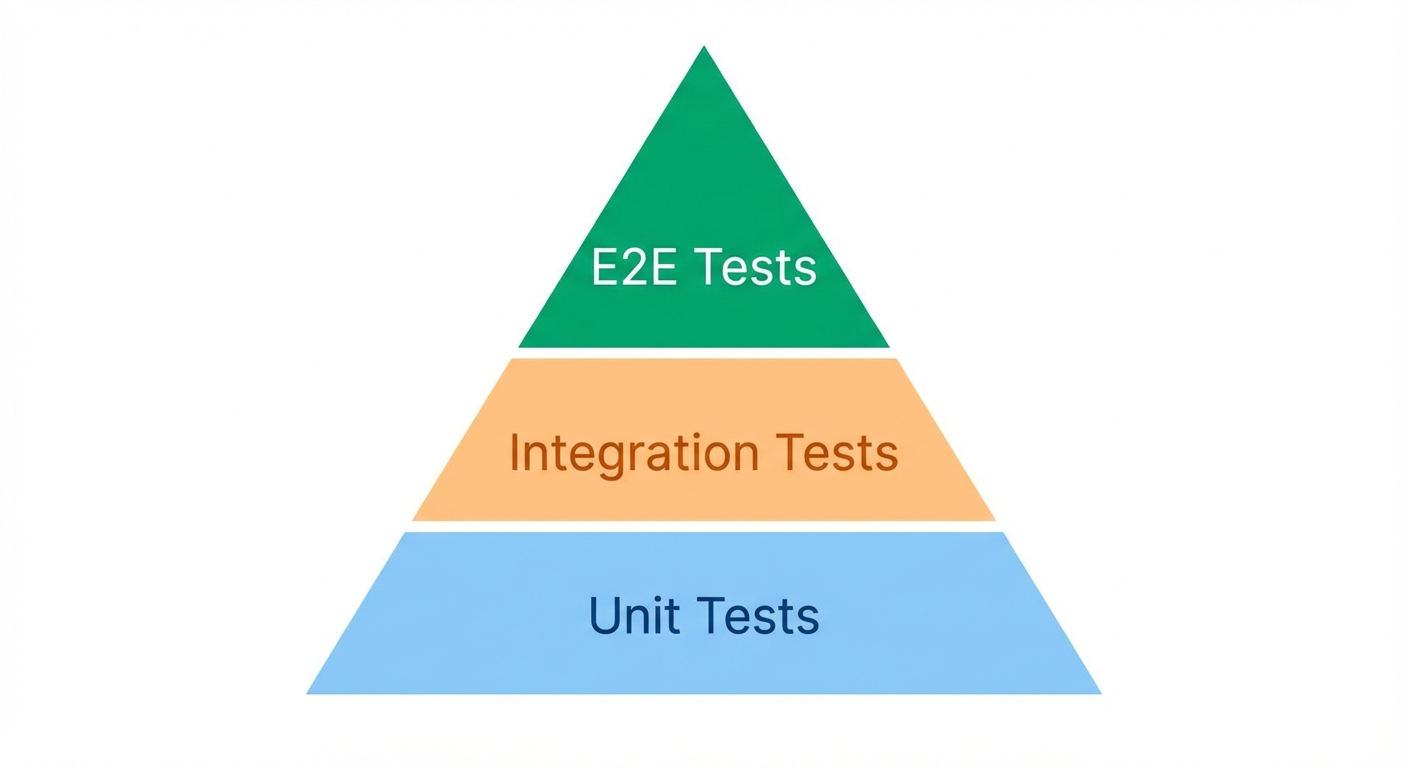
You already have Django's test client. It's fast. It tests views, models, and forms without browser overhead. A form submission returns a redirect, the database updates correctly.
Then you deploy. The form works in your test client. In Firefox, a JavaScript validation prevents submission. In Safari, a CSS layout breaks the form. In Edge, browser autofill triggers events differently. Django's test client never executes JavaScript or renders CSS.
Selenium tests in actual browsers. It controls Chrome through ChromeDriver, Firefox through GeckoDriver, Safari through SafariDriver. When it finds a bug in a specific browser, you know users will hit it.
When Selenium shines:
| Feature | Django Test Client | Selenium |
|---|---|---|
| Speed | Very fast (no browser) | Slower (real browser) |
| JavaScript | Not executed | Fully executed |
| CSS Rendering | Not tested | Fully tested |
| Cross-browser | N/A | Chrome, Firefox, Safari, Edge, IE11 |
| Use case | Backend logic | Full user experience |
Selenium's main advantage is cross-browser testing. If your users run older browsers or you need to verify behavior across different rendering engines, Selenium provides that coverage. Learn more about test automation frameworks to understand when to use each approach. For alternatives with auto-waiting, see our Django Playwright testing guide or Django Cypress testing guide.
If Selenium's boilerplate and maintenance overhead are keeping your Django team from E2E testing, Autonoma removes both barriers — AI agents generate and run tests from your codebase on real browsers, no WebDriver setup required.
Setting Up Selenium for Django
Installation
Install Selenium and browser drivers:
pip install selenium webdriver-managerThe webdriver-manager package automatically downloads and manages browser drivers.
Django's LiveServerTestCase
Django provides LiveServerTestCase specifically for Selenium tests. It starts a real HTTP server on a separate thread:
from django.contrib.staticfiles.testing import StaticLiveServerTestCase
from selenium import webdriver
from selenium.webdriver.chrome.service import Service
from webdriver_manager.chrome import ChromeDriverManager

class BaseSeleniumTest(StaticLiveServerTestCase):
    @classmethod
    def setUpClass(cls):
        super().setUpClass()
        options = webdriver.ChromeOptions()
        options.add_argument('--headless')
        options.add_argument('--no-sandbox')
        options.add_argument('--disable-dev-shm-usage')

        cls.driver = webdriver.Chrome(
            service=Service(ChromeDriverManager().install()),
            options=options
        )
        cls.driver.implicitly_wait(10)

    @classmethod
    def tearDownClass(cls):
        cls.driver.quit()
        super().tearDownClass()
Use StaticLiveServerTestCase to also serve static files (CSS, JavaScript, images).
Project Structure
your_django_project/
├── manage.py
├── your_app/
│   ├── models.py
│   ├── views.py
│   └── templates/
├── tests/
│   ├── __init__.py
│   ├── e2e/
│   │   ├── __init__.py
│   │   ├── base.py
│   │   ├── test_auth.py
│   │   └── test_forms.py
│   └── unit/
└── requirements.txt
Your First Test
Create tests/e2e/test_homepage.py:
from selenium.webdriver.common.by import By
from selenium.webdriver.support.ui import WebDriverWait
from selenium.webdriver.support import expected_conditions as EC
from .base import BaseSeleniumTest

class HomepageTests(BaseSeleniumTest):
    def test_homepage_loads(self):
        self.driver.get(self.live_server_url)

        self.assertIn('My Django App', self.driver.title)

        heading = WebDriverWait(self.driver, 10).until(
            EC.presence_of_element_located((By.TAG_NAME, 'h1'))
        )
        self.assertTrue(heading.is_displayed())

    def test_navigation_works(self):
        self.driver.get(self.live_server_url)

        about_link = self.driver.find_element(By.LINK_TEXT, 'About')
        about_link.click()

        WebDriverWait(self.driver, 10).until(
            EC.url_contains('/about/')
        )

        self.assertIn('/about/', self.driver.current_url)
Run tests:
python manage.py test tests.e2e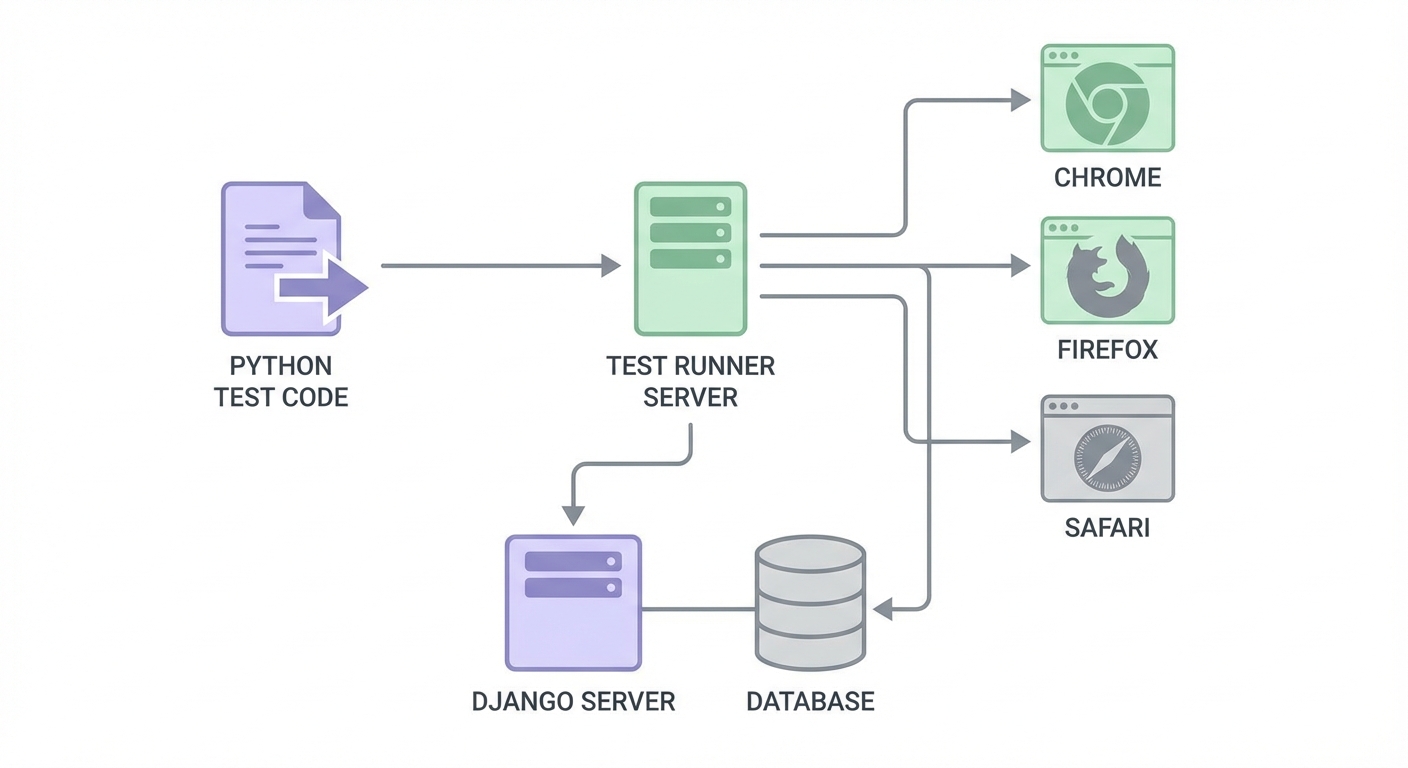
Core Testing Patterns for Django
Locator Strategies
Selenium uses the By class to locate elements:
from selenium.webdriver.common.by import By

# By ID (most reliable if available)
element = driver.find_element(By.ID, 'email')

# By name (good for Django form fields)
element = driver.find_element(By.NAME, 'username')

# By CSS selector
element = driver.find_element(By.CSS_SELECTOR, '[data-testid="submit"]')

# By link text
element = driver.find_element(By.LINK_TEXT, 'About Us')

# By class name
element = driver.find_element(By.CLASS_NAME, 'btn-primary')
Best practice: Add data-testid attributes to your Django templates:
<button data-testid="submit-btn" type="submit">Submit</button>Then locate:
button = driver.find_element(By.CSS_SELECTOR, '[data-testid="submit-btn"]')Explicit Waits with WebDriverWait
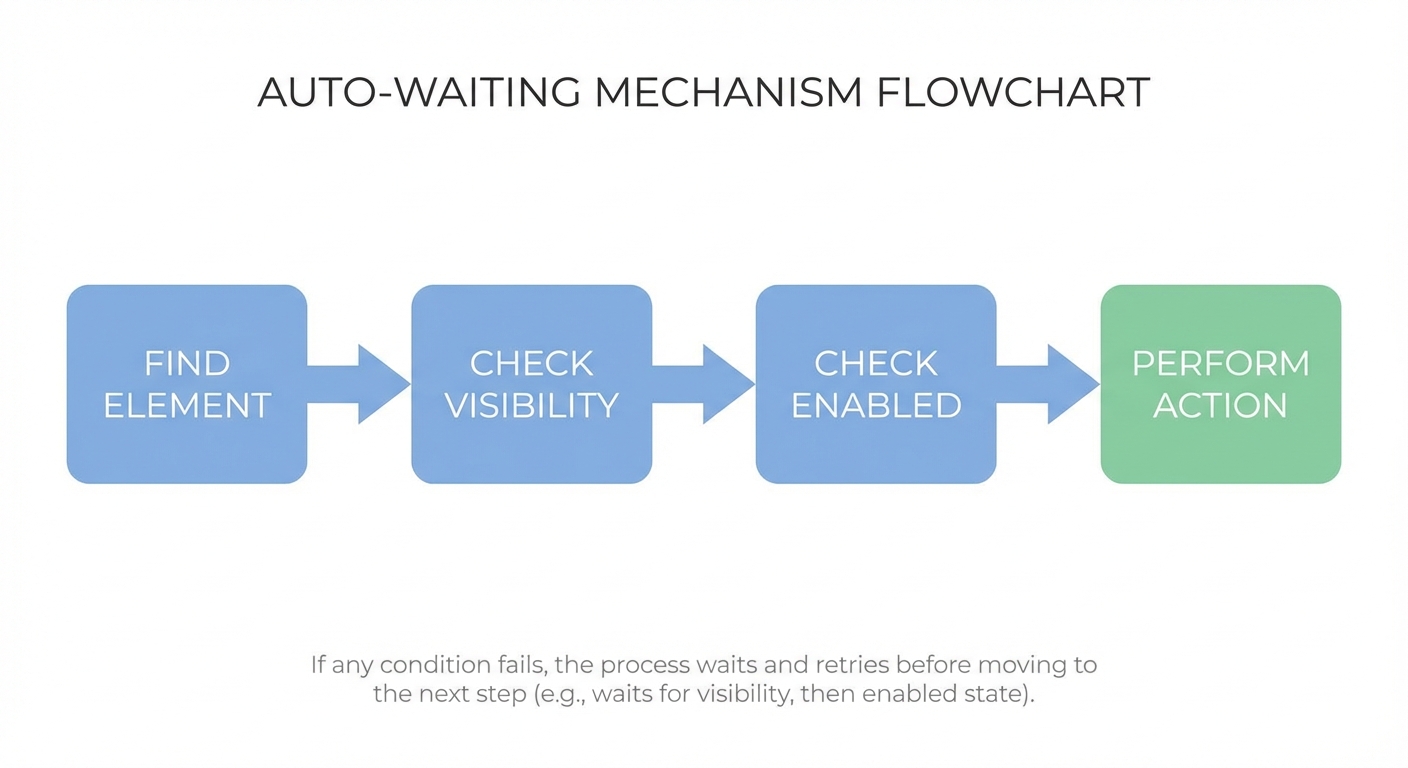
Never use time.sleep(). Use explicit waits:
from selenium.webdriver.support.ui import WebDriverWait
from selenium.webdriver.support import expected_conditions as EC

# Wait for element to be present
element = WebDriverWait(driver, 10).until(
    EC.presence_of_element_located((By.ID, 'results'))
)

# Wait for element to be clickable
button = WebDriverWait(driver, 10).until(
    EC.element_to_be_clickable((By.CSS_SELECTOR, '[data-testid="submit"]'))
)

# Wait for URL to change
WebDriverWait(driver, 10).until(
    EC.url_contains('/dashboard/')
)

# Wait for element to disappear
WebDriverWait(driver, 10).until(
    EC.invisibility_of_element_located((By.CLASS_NAME, 'loading'))
)
Testing Django Forms
class ContactFormTests(BaseSeleniumTest):
    def test_form_submission(self):
        self.driver.get(f'{self.live_server_url}/contact/')

        # Fill form fields
        name_input = self.driver.find_element(By.NAME, 'name')
        name_input.send_keys('John Doe')

        email_input = self.driver.find_element(By.NAME, 'email')
        email_input.send_keys('john@example.com')

        message_input = self.driver.find_element(By.NAME, 'message')
        message_input.send_keys('Hello from Selenium!')

        # Submit form
        submit_btn = self.driver.find_element(By.CSS_SELECTOR, '[type="submit"]')
        submit_btn.click()

        # Verify success
        success_msg = WebDriverWait(self.driver, 10).until(
            EC.presence_of_element_located((By.CLASS_NAME, 'success'))
        )
        self.assertIn('sent successfully', success_msg.text)

    def test_form_validation(self):
        self.driver.get(f'{self.live_server_url}/contact/')

        # Submit without filling
        submit_btn = self.driver.find_element(By.CSS_SELECTOR, '[type="submit"]')
        submit_btn.click()

        # Check for validation errors
        error = WebDriverWait(self.driver, 10).until(
            EC.presence_of_element_located((By.CLASS_NAME, 'errorlist'))
        )
        self.assertIn('required', error.text.lower())
Handling CSRF Tokens
Django's CSRF tokens are handled automatically when submitting forms through the browser. Selenium loads your template, which includes the token:
def test_form_with_csrf(self):
    self.driver.get(f'{self.live_server_url}/contact/')

    # CSRF token is already in the form
    email_input = self.driver.find_element(By.NAME, 'email')
    email_input.send_keys('test@example.com')

    submit_btn = self.driver.find_element(By.CSS_SELECTOR, '[type="submit"]')
    submit_btn.click()

    # Django validates CSRF automatically
    WebDriverWait(self.driver, 10).until(
        EC.presence_of_element_located((By.CLASS_NAME, 'success'))
    )
Testing Django Authentication
Login Flow
from django.contrib.auth import get_user_model

class AuthenticationTests(BaseSeleniumTest):
    @classmethod
    def setUpClass(cls):
        super().setUpClass()
        User = get_user_model()
        cls.user = User.objects.create_user(
            username='testuser',
            email='test@example.com',
            password='testpass123'
        )

    def test_user_login(self):
        self.driver.get(f'{self.live_server_url}/accounts/login/')

        username_input = self.driver.find_element(By.NAME, 'username')
        username_input.send_keys('testuser')

        password_input = self.driver.find_element(By.NAME, 'password')
        password_input.send_keys('testpass123')

        login_btn = self.driver.find_element(By.CSS_SELECTOR, '[type="submit"]')
        login_btn.click()

        WebDriverWait(self.driver, 10).until(
            EC.url_contains('/dashboard/')
        )

        self.assertIn('/dashboard/', self.driver.current_url)

        welcome_text = self.driver.find_element(By.TAG_NAME, 'body').text
        self.assertIn('Welcome, testuser', welcome_text)

    def test_invalid_login(self):
        self.driver.get(f'{self.live_server_url}/accounts/login/')

        username_input = self.driver.find_element(By.NAME, 'username')
        username_input.send_keys('wronguser')

        password_input = self.driver.find_element(By.NAME, 'password')
        password_input.send_keys('wrongpass')

        login_btn = self.driver.find_element(By.CSS_SELECTOR, '[type="submit"]')
        login_btn.click()

        error = WebDriverWait(self.driver, 10).until(
            EC.presence_of_element_located((By.CLASS_NAME, 'errorlist'))
        )
        self.assertIn('invalid', error.text.lower())
Reusable Login Helper
class BaseSeleniumTest(StaticLiveServerTestCase):
    # ... setup code ...

    def login(self, username, password):
        """Helper method to log in a user."""
        self.driver.get(f'{self.live_server_url}/accounts/login/')

        self.driver.find_element(By.NAME, 'username').send_keys(username)
        self.driver.find_element(By.NAME, 'password').send_keys(password)
        self.driver.find_element(By.CSS_SELECTOR, '[type="submit"]').click()

        WebDriverWait(self.driver, 10).until(
            EC.url_contains('/dashboard/')
        )
Testing Django Admin
class AdminTests(BaseSeleniumTest):
    @classmethod
    def setUpClass(cls):
        super().setUpClass()
        User = get_user_model()
        cls.admin = User.objects.create_superuser(
            username='admin',
            email='admin@example.com',
            password='adminpass123'
        )

    def test_admin_add_product(self):
        # Login to admin
        self.driver.get(f'{self.live_server_url}/admin/')

        self.driver.find_element(By.NAME, 'username').send_keys('admin')
        self.driver.find_element(By.NAME, 'password').send_keys('adminpass123')
        self.driver.find_element(By.CSS_SELECTOR, '[type="submit"]').click()

        # Navigate to products
        WebDriverWait(self.driver, 10).until(
            EC.presence_of_element_located((By.LINK_TEXT, 'Products'))
        ).click()

        self.driver.find_element(By.LINK_TEXT, 'Add product').click()

        # Fill form
        self.driver.find_element(By.NAME, 'name').send_keys('Test Product')
        self.driver.find_element(By.NAME, 'price').send_keys('29.99')
        self.driver.find_element(By.NAME, '_save').click()

        # Verify success
        success_msg = WebDriverWait(self.driver, 10).until(
            EC.presence_of_element_located((By.CLASS_NAME, 'success'))
        )
        self.assertIn('was added successfully', success_msg.text)
Advanced Patterns
Cross-Browser Testing
from selenium import webdriver
from selenium.webdriver.chrome.service import Service as ChromeService
from selenium.webdriver.firefox.service import Service as FirefoxService
from webdriver_manager.chrome import ChromeDriverManager
from webdriver_manager.firefox import GeckoDriverManager

class CrossBrowserTest(StaticLiveServerTestCase):
    browsers = ['chrome', 'firefox']

    def get_driver(self, browser_name):
        if browser_name == 'chrome':
            options = webdriver.ChromeOptions()
            options.add_argument('--headless')
            return webdriver.Chrome(
                service=ChromeService(ChromeDriverManager().install()),
                options=options
            )
        elif browser_name == 'firefox':
            options = webdriver.FirefoxOptions()
            options.add_argument('--headless')
            return webdriver.Firefox(
                service=FirefoxService(GeckoDriverManager().install()),
                options=options
            )

    def test_login_across_browsers(self):
        for browser_name in self.browsers:
            with self.subTest(browser=browser_name):
                driver = self.get_driver(browser_name)
                try:
                    driver.get(f'{self.live_server_url}/accounts/login/')
                    driver.find_element(By.NAME, 'username').send_keys('testuser')
                    driver.find_element(By.NAME, 'password').send_keys('testpass123')
                    driver.find_element(By.CSS_SELECTOR, '[type="submit"]').click()

                    WebDriverWait(driver, 10).until(
                        EC.url_contains('/dashboard/')
                    )
                    self.assertIn('/dashboard/', driver.current_url)
                finally:
                    driver.quit()
Page Object Model
For maintainable tests, use the Page Object pattern:
# pages/login_page.py
class LoginPage:
    def __init__(self, driver, base_url):
        self.driver = driver
        self.base_url = base_url

    def navigate(self):
        self.driver.get(f'{self.base_url}/accounts/login/')

    def login(self, username, password):
        self.driver.find_element(By.NAME, 'username').send_keys(username)
        self.driver.find_element(By.NAME, 'password').send_keys(password)
        self.driver.find_element(By.CSS_SELECTOR, '[type="submit"]').click()

    def wait_for_dashboard(self):
        WebDriverWait(self.driver, 10).until(
            EC.url_contains('/dashboard/')
        )

    def get_error_message(self):
        error = WebDriverWait(self.driver, 10).until(
            EC.presence_of_element_located((By.CLASS_NAME, 'errorlist'))
        )
        return error.text
Use in tests:
from .pages.login_page import LoginPage

class LoginTests(BaseSeleniumTest):
    def test_successful_login(self):
        login_page = LoginPage(self.driver, self.live_server_url)
        login_page.navigate()
        login_page.login('testuser', 'testpass123')
        login_page.wait_for_dashboard()

        self.assertIn('/dashboard/', self.driver.current_url)
For more on Page Object Model, see our Page Object Model architecture guide.
Common Problems and Solutions
StaleElementReferenceException
Happens when Django re-renders the page and element references become stale:
# Wrong: stores reference that becomes stale
element = driver.find_element(By.ID, 'counter')
driver.find_element(By.ID, 'increment').click()
print(element.text)  # StaleElementReferenceException!

# Correct: re-locate after page update
driver.find_element(By.ID, 'increment').click()
WebDriverWait(driver, 10).until(
    EC.text_to_be_present_in_element((By.ID, 'counter'), '1')
)
element = driver.find_element(By.ID, 'counter')
print(element.text)
Timing Issues
Always use explicit waits, not implicit waits or sleep:
# Wrong: arbitrary sleep
import time
time.sleep(3)

# Wrong: implicit wait affects all operations
driver.implicitly_wait(10)

# Correct: explicit wait for specific condition
WebDriverWait(driver, 10).until(
    EC.element_to_be_clickable((By.ID, 'submit'))
)
Database Isolation
Use Django's test database and transactions:
class IsolatedTests(StaticLiveServerTestCase):
    def setUp(self):
        # Each test gets a clean database
        User.objects.create_user(username='testuser', password='testpass123')

    def test_something(self):
        # This user only exists in this test
        pass
For more strategies, see our guide on reducing test flakiness.
Debugging Failed Tests
Screenshots on Failure
import unittest

class BaseSeleniumTest(StaticLiveServerTestCase):
    def tearDown(self):
        if self._outcome.errors:
            test_name = self._testMethodName
            self.driver.save_screenshot(f'screenshots/{test_name}.png')
        super().tearDown()
Browser Console Logs
def test_check_console_errors(self):
    self.driver.get(self.live_server_url)

    logs = self.driver.get_log('browser')
    errors = [log for log in logs if log['level'] == 'SEVERE']

    self.assertEqual(len(errors), 0, f'JavaScript errors found: {errors}')
Slow Motion Debugging
def slow_click(self, element):
    """Highlight element and pause before clicking."""
    self.driver.execute_script(
        "arguments[0].style.border='3px solid red'", element
    )
    import time
    time.sleep(0.5)
    element.click()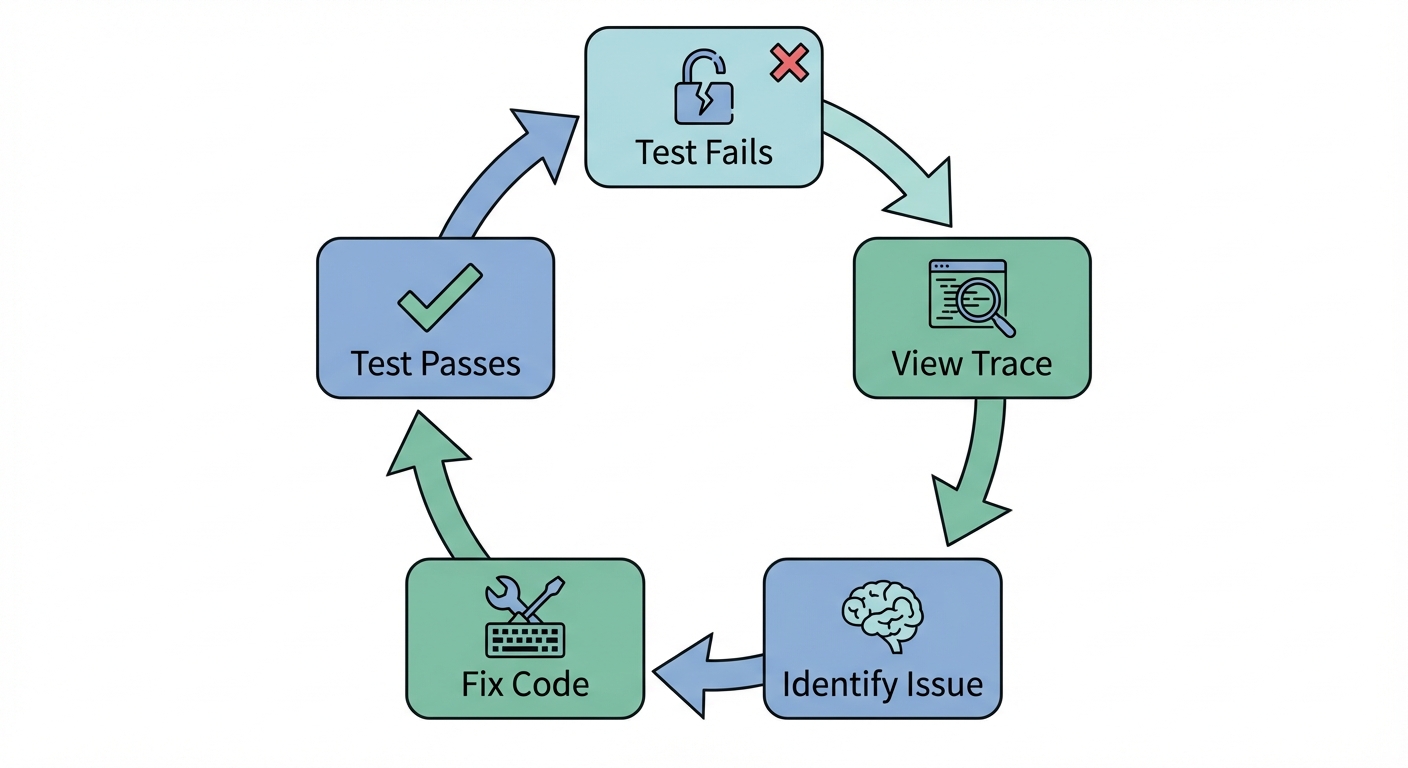
CI/CD Integration
GitHub Actions
Create .github/workflows/selenium.yml:
name: Selenium Tests
on: [push, pull_request]

jobs:
  test:
    runs-on: ubuntu-latest

    services:
      postgres:
        image: postgres:13
        env:
          POSTGRES_PASSWORD: postgres
        options: >-
          --health-cmd pg_isready
          --health-interval 10s

    steps:
    - uses: actions/checkout@v4

    - name: Set up Python
      uses: actions/setup-python@v4
      with:
        python-version: '3.11'

    - name: Install Chrome
      run: |
        sudo apt-get update
        sudo apt-get install -y google-chrome-stable

    - name: Install dependencies
      run: pip install -r requirements.txt

    - name: Run migrations
      run: python manage.py migrate

    - name: Run Selenium tests
      run: python manage.py test tests.e2e

    - name: Upload screenshots
      if: failure()
      uses: actions/upload-artifact@v4
      with:
        name: screenshots
        path: screenshots/
Best Practices
Use StaticLiveServerTestCase: Ensures static files are served correctly.
Always use explicit waits: Never use time.sleep() or rely on implicit waits.
Add data-testid attributes: Make locators resilient to template changes.
Implement Page Object Model: Encapsulate page logic for maintainability.
Re-locate elements after page updates: Avoid StaleElementReferenceException.
Run cross-browser tests: Catch browser-specific bugs before users do.
Conclusion
You now have everything needed to test Django applications with Selenium WebDriver. You can configure Selenium with Django's LiveServerTestCase, implement reliable explicit waits, test authentication flows, run cross-browser tests, and integrate with CI/CD.
Selenium's strength is cross-browser coverage and compatibility with enterprise testing infrastructure. Start with one critical user flow, then expand coverage.
Next steps:
- Add Selenium tests to your Django project
- Implement Page Object Model as tests grow
- Set up CI to run tests across browsers
- Consider autonomous testing with AI to reduce maintenance
Resources:
Frequently Asked Questions
Install selenium and webdriver-manager with pip. Create a test class extending StaticLiveServerTestCase. Initialize WebDriver in setUpClass() and quit it in tearDownClass(). Django automatically starts a test server at self.live_server_url.
LiveServerTestCase starts a Django server for tests. StaticLiveServerTestCase also serves static files (CSS, JavaScript, images). Use StaticLiveServerTestCase for E2E tests where you need the complete frontend experience.
Use WebDriverWait with expected_conditions. Import from selenium.webdriver.support.ui and selenium.webdriver.support. Example: WebDriverWait(driver, 10).until(EC.presence_of_element_located((By.ID, 'element'))). Never use time.sleep().
This occurs when Django re-renders the page and your element reference is no longer valid. Solution: don't store element references across page updates. Re-locate elements after any action that triggers a page change.
Navigate to the login page, find username and password fields by name, fill them with send_keys(), click the submit button, then wait for URL to change to dashboard. Create a reusable login() helper method for tests that need authentication.
Create a get_driver() method that returns different WebDriver instances based on browser name. Use Chrome, Firefox, and Safari drivers. Loop through browsers in your test using subTest() for clear reporting.
CSRF tokens are handled automatically when submitting forms through the browser. Selenium loads your Django template which includes the CSRF token in the form. For AJAX calls, get the token from cookies and include in headers.
Use GitHub Actions or similar CI. Install Chrome and ChromeDriver. Run Django migrations. Execute python manage.py test tests.e2e. Upload screenshots as artifacts on failure for debugging.
Take screenshots on failure with driver.save_screenshot(). Check browser console logs with driver.get_log('browser'). Add highlighting and pauses during development to watch test execution.
Page Object Model encapsulates page-specific locators and actions in classes. Use it when you have multiple tests for the same pages. It reduces duplication and makes tests easier to maintain when templates change.


