

Introduction
You've built a React app. It works on your machine. Then a user reports a bug you never saw coming: a checkout flow that breaks only when using the back button, or a form that fails when autofill populates fields too quickly.
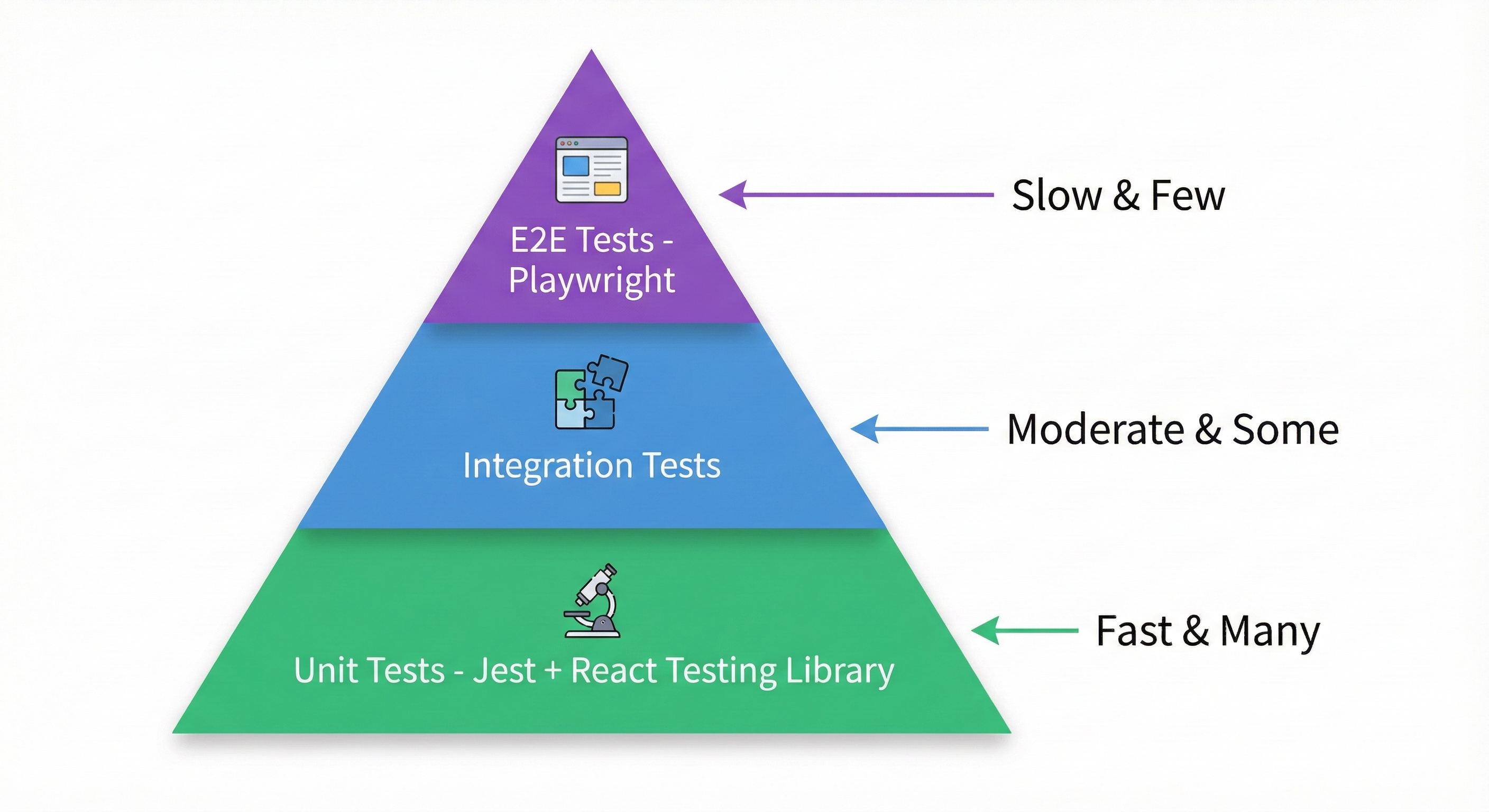
Unit tests with Jest and React Testing Library caught nothing. They test components in isolation. Real users don't use your app in isolation.
Learning how to test React apps with Playwright changes everything. This complete React Playwright tutorial shows you how to test your application the way users actually experience it: in real browsers, with real user interactions, across real network conditions. You'll learn exactly how to set up Playwright for React, test React-specific features like hooks and routing, and solve the 15 most common problems developers encounter when testing React with Playwright.
Why Playwright for React Testing?
You already have Jest and React Testing Library. They're fast. They catch logic errors in individual components. A button's onClick handler fires, state updates, the component re-renders with new text.
Then you deploy to production. The button works in isolation. In production, clicking it triggers an API call that updates global state, which triggers a side effect in a different component, which updates the URL, which renders a new route. Your unit tests never saw this coming.
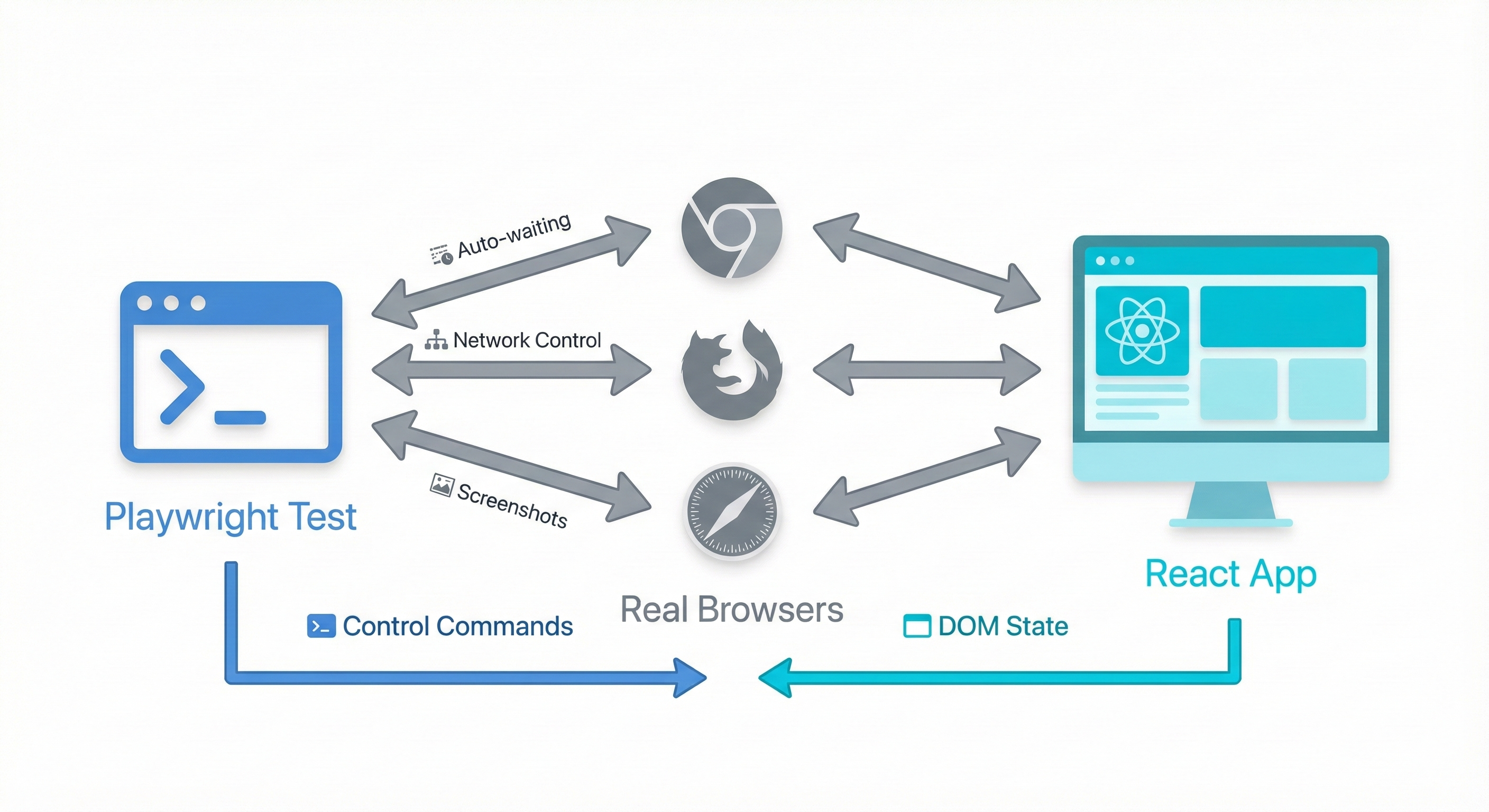
Playwright tests the entire chain. It runs your actual React application in Chrome, Firefox, and Safari. It clicks buttons, fills forms, and waits for network requests, just like your users do. When it finds a bug, you know it's a bug users will hit.
When to use each approach:
Unit tests are faster and catch component-level logic errors. Use them for testing individual component behavior, utilities, and hooks in isolation. Playwright is slower but catches integration bugs: how components work together, how routing behaves, how your app handles real API responses. You need both. Unit tests give you speed and coverage. Playwright gives you confidence. Learn more about integration testing vs E2E testing to understand when to use each approach.
For React teams who want end-to-end coverage without the scripting overhead, Autonoma reads your codebase and generates tests autonomously — no page objects, no selectors, no maintenance when components change.
Setting Up Playwright for React
Installation and Configuration
First, install Playwright in your Create React App project:
npm init playwright@latestThis command installs Playwright, creates a playwright.config.ts file, and adds example tests. When prompted, accept the defaults (TypeScript, tests folder, GitHub Actions workflow).
Now configure Playwright to work with your React development server. Open playwright.config.ts and add the webServer configuration:
import { defineConfig, devices } from '@playwright/test';

export default defineConfig({
  testDir: './tests',
  fullyParallel: true,
  forbidOnly: !!process.env.CI,
  retries: process.env.CI ? 2 : 0,
  workers: process.env.CI ? 1 : undefined,
  reporter: 'html',

  use: {
    baseURL: 'http://localhost:3000',
    trace: 'on-first-retry',
    screenshot: 'only-on-failure',
  },

  // Start dev server before tests
  webServer: {
    command: 'npm start',
    url: 'http://localhost:3000',
    reuseExistingServer: !process.env.CI,
    timeout: 120000,
  },

  projects: [
    {
      name: 'chromium',
      use: { ...devices['Desktop Chrome'] },
    },
    {
      name: 'firefox',
      use: { ...devices['Desktop Firefox'] },
    },
    {
      name: 'webkit',
      use: { ...devices['Desktop Safari'] },
    },
  ],
});
This configuration starts your React dev server automatically before running tests. The reuseExistingServer option reuses an already-running server during local development but starts a fresh one in CI.
Project Structure
Create a tests directory at your project root (next to src). Use descriptive test file names:
your-react-app/
├── src/
├── public/
├── tests/
│   ├── auth/
│   │   ├── login.spec.ts
│   │   └── signup.spec.ts
│   ├── checkout/
│   │   └── purchase-flow.spec.ts
│   └── homepage.spec.ts
├── playwright.config.ts
└── package.json
The .spec.ts extension tells Playwright these are test files.
Your First Test
Create tests/homepage.spec.ts:
import { test, expect } from '@playwright/test';

test('homepage loads and displays title', async ({ page }) => {
  await page.goto('/');

  await expect(page).toHaveTitle(/React App/);
  await expect(page.getByRole('heading', { level: 1 })).toBeVisible();
});
Run it:
npx playwright testPlaywright launches browsers, navigates to your app, and verifies the title appears. Run tests with UI mode to see what's happening:
npx playwright test --uiThis opens an interactive interface showing each test step, network requests, and console logs.
Core Testing Patterns for React
Locator Strategies: The Right Way
The biggest mistake developers make is using CSS selectors or XPath. They're brittle. Your UI changes, your tests break.
Playwright's philosophy: locate elements the way users do, by role, label, or visible text. Not by implementation details.
Bad approach:
// Breaks when you change CSS classes
await page.locator('.submit-btn').click();

// Breaks when DOM structure changes
await page.locator('form > div:nth-child(2) > button').click();
Good approach:
// Works even if CSS classes or structure changes
await page.getByRole('button', { name: 'Submit' }).click();

// Or by label for form inputs
await page.getByLabel('Email address').fill('[email protected]');

// Or by placeholder
await page.getByPlaceholder('Enter your email').fill('[email protected]');
Locator priority hierarchy:
Use locators in this order of preference:
getByRole()- Most resilient, accessibility-focusedgetByLabel()- Great for form inputsgetByPlaceholder()orgetByText()- For visible textgetByTestId()- When you control the markuplocator()with CSS - Last resort only
Here's a complete login form test using best practices:
import { test, expect } from '@playwright/test';

test('user can log in with valid credentials', async ({ page }) => {
  await page.goto('/login');

  // Use getByLabel for form inputs
  await page.getByLabel('Email').fill('[email protected]');
  await page.getByLabel('Password').fill('securePassword123');

  // Use getByRole for buttons
  await page.getByRole('button', { name: 'Sign In' }).click();

  // Verify successful login
  await expect(page).toHaveURL('/dashboard');
  await expect(page.getByRole('heading', { name: 'Welcome back' })).toBeVisible();
});
Testing User Interactions
Playwright provides methods that simulate real user behavior:
test('user completes checkout flow', async ({ page }) => {
  await page.goto('/products');

  // Click product
  await page.getByRole('link', { name: 'Premium Plan' }).click();

  // Fill form
  await page.getByLabel('Card number').fill('4242424242424242');
  await page.getByLabel('Expiry date').fill('12/25');
  await page.getByLabel('CVC').fill('123');

  // Select from dropdown
  await page.getByLabel('Country').selectOption('US');

  // Check checkbox
  await page.getByLabel('I agree to terms').check();

  // Submit
  await page.getByRole('button', { name: 'Complete Purchase' }).click();

  // Verify success
  await expect(page.getByText('Payment successful')).toBeVisible();
});
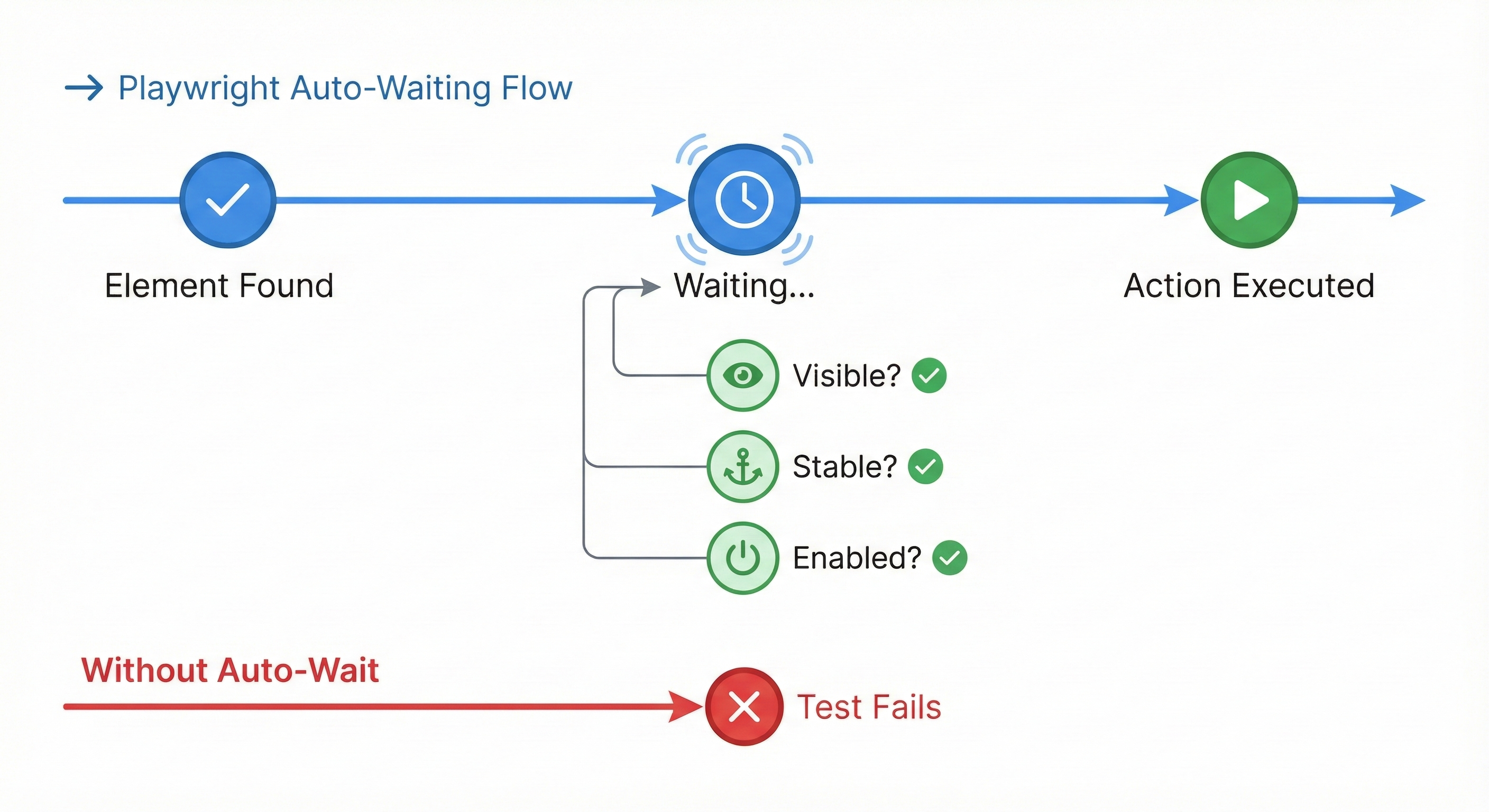
Each action waits for the element to be actionable (visible, stable, enabled) before proceeding. This is auto-waiting in action.
Assertions and Auto-Waiting
Playwright's assertions automatically retry until the condition is met or timeout occurs (default 30 seconds). This handles React's asynchronous rendering without manual waits:
test('dynamic content appears after API call', async ({ page }) => {
  await page.goto('/users');

  // Clicks button that triggers API call
  await page.getByRole('button', { name: 'Load Users' }).click();

  // Auto-waits until the user list appears (even if API takes 2 seconds)
  await expect(page.getByRole('list')).toBeVisible();
  await expect(page.getByRole('listitem')).toHaveCount(10);

  // Text assertions also auto-wait
  await expect(page.getByText('John Doe')).toBeVisible();

  // URL assertions
  await expect(page).toHaveURL(/.*users/);
});
Common assertions you'll use:
toBeVisible()- Element exists and is visibletoHaveText()- Exact text matchtoContainText()- Partial text matchtoHaveValue()- For input valuestoBeEnabled()/toBeDisabled()toHaveCount()- For lists of elementstoHaveURL()- Current page URL
Testing React-Specific Features: Components, Hooks, and E2E Patterns
Components with State
React components update state asynchronously. Playwright's auto-waiting handles this automatically:
test('counter increments when button clicked', async ({ page }) => {
  await page.goto('/counter');

  // Initial state
  await expect(page.getByTestId('count')).toHaveText('0');

  // Click triggers setState
  await page.getByRole('button', { name: 'Increment' }).click();

  // Auto-waits for React re-render
  await expect(page.getByTestId('count')).toHaveText('1');

  // Multiple clicks
  await page.getByRole('button', { name: 'Increment' }).click();
  await page.getByRole('button', { name: 'Increment' }).click();

  await expect(page.getByTestId('count')).toHaveText('3');
});
No manual waits needed. Playwright checks the DOM repeatedly until the text updates or timeout occurs.
Testing React Hooks (useEffect, useState)
Components with useEffect often trigger API calls after render. Test the behavior users see, not the implementation:
test('user profile loads data from API', async ({ page }) => {
  await page.goto('/profile/123');

  // Component mounts, useEffect fires, API call starts
  // Loading state appears
  await expect(page.getByText('Loading...')).toBeVisible();

  // Wait for API to complete and data to render
  await expect(page.getByRole('heading', { name: 'Jane Smith' })).toBeVisible();
  await expect(page.getByText('[email protected]')).toBeVisible();

  // Loading state should disappear
  await expect(page.getByText('Loading...')).not.toBeVisible();
});
This test doesn't know about useEffect. It just verifies what users experience: loading state appears, then data appears.
Testing Forms and Controlled Components
React controlled components require proper event sequences. Playwright handles this correctly:
test('form validates input and shows errors', async ({ page }) => {
  await page.goto('/signup');

  const emailInput = page.getByLabel('Email');
  const passwordInput = page.getByLabel('Password');
  const submitButton = page.getByRole('button', { name: 'Create Account' });

  // Submit without filling - validation errors appear
  await submitButton.click();

  await expect(page.getByText('Email is required')).toBeVisible();
  await expect(page.getByText('Password is required')).toBeVisible();

  // Fill invalid email
  await emailInput.fill('notanemail');
  await emailInput.blur(); // Trigger onBlur validation

  await expect(page.getByText('Invalid email address')).toBeVisible();

  // Fill valid email
  await emailInput.fill('[email protected]');
  await expect(page.getByText('Invalid email address')).not.toBeVisible();

  // Fill short password
  await passwordInput.fill('123');
  await passwordInput.blur();

  await expect(page.getByText('Password must be at least 8 characters')).toBeVisible();

  // Fill valid password
  await passwordInput.fill('securePass123');

  // Submit valid form
  await submitButton.click();

  await expect(page).toHaveURL('/dashboard');
});
Playwright's fill() method triggers all the right React synthetic events (onChange, onInput, onBlur). Use blur() to explicitly trigger onBlur validation.
Testing React Router Navigation
React Router navigation is asynchronous. Wait for both URL change and content to load:
test('user navigates through application routes', async ({ page }) => {
  await page.goto('/');

  // Navigate to products page
  await page.getByRole('link', { name: 'Products' }).click();

  // Wait for URL and content
  await expect(page).toHaveURL('/products');
  await expect(page.getByRole('heading', { name: 'Our Products' })).toBeVisible();

  // Navigate to specific product
  await page.getByRole('link', { name: 'Premium Plan' }).click();

  await expect(page).toHaveURL(/\/products\/\d+/);
  await expect(page.getByRole('heading', { name: 'Premium Plan' })).toBeVisible();

  // Use back button
  await page.goBack();

  await expect(page).toHaveURL('/products');
});
The toHaveURL() assertion accepts regex patterns for dynamic routes.
Advanced Patterns for React E2E Testing
API Mocking and Network Interception
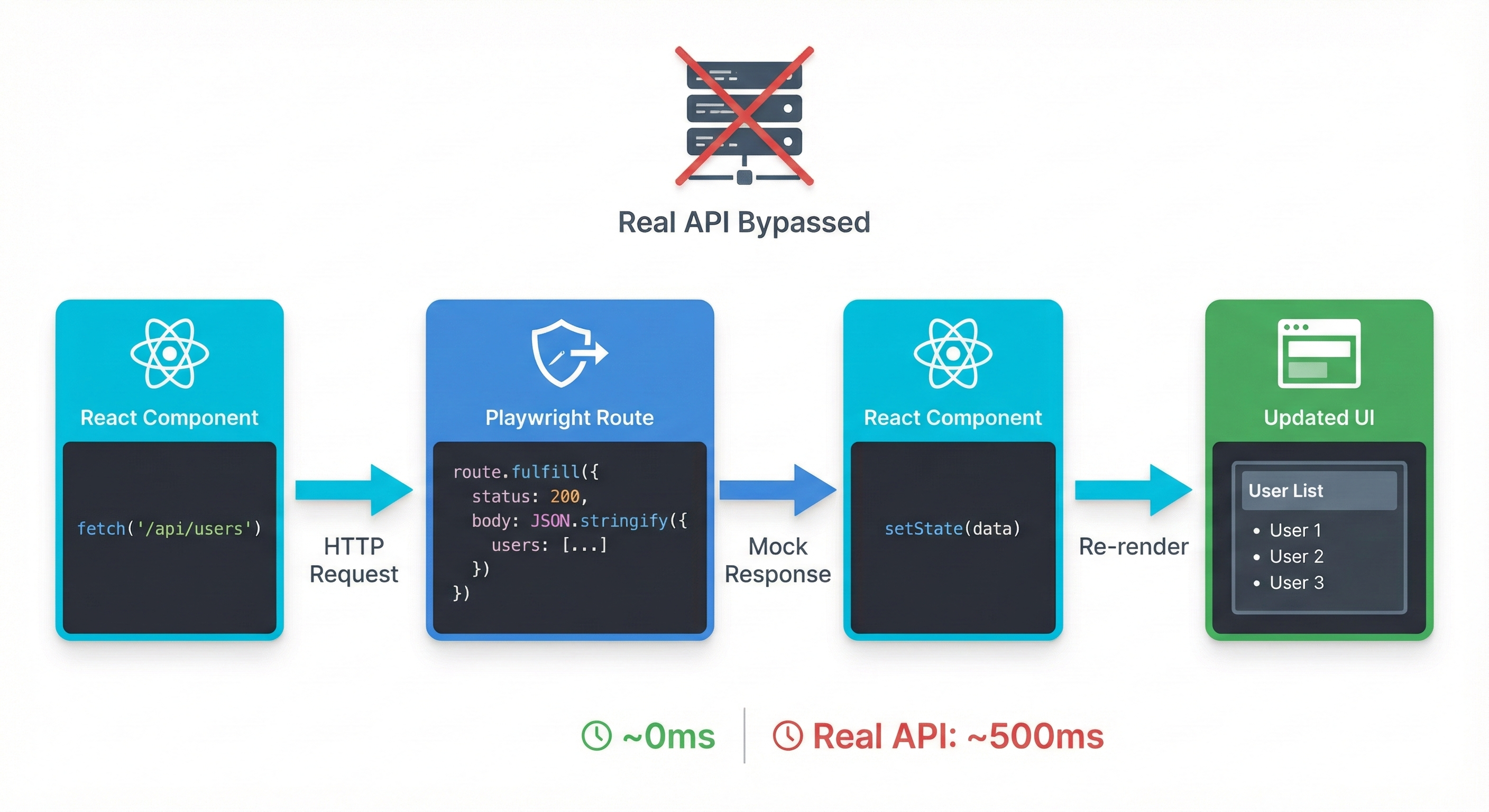
Testing against real APIs is slow and unpredictable. Mock them (especially important when testing in fintech):
import { test, expect } from '@playwright/test';

test('displays users from mocked API', async ({ page }) => {
  // Intercept API call before navigating
  await page.route('**/api/users', async (route) => {
    await route.fulfill({
      status: 200,
      contentType: 'application/json',
      body: JSON.stringify([
        { id: 1, name: 'Alice Johnson', email: '[email protected]' },
        { id: 2, name: 'Bob Smith', email: '[email protected]' },
      ]),
    });
  });

  await page.goto('/users');

  // React component receives mock data from "API"
  await expect(page.getByText('Alice Johnson')).toBeVisible();
  await expect(page.getByText('Bob Smith')).toBeVisible();
});

test('handles API error gracefully', async ({ page }) => {
  // Mock API failure
  await page.route('**/api/users', async (route) => {
    await route.fulfill({
      status: 500,
      contentType: 'application/json',
      body: JSON.stringify({ error: 'Internal server error' }),
    });
  });

  await page.goto('/users');

  // Verify error message displays
  await expect(page.getByText('Failed to load users')).toBeVisible();
  await expect(page.getByRole('button', { name: 'Retry' })).toBeVisible();
});
Set up routes before navigating to the page. If the component makes an API call in useEffect on mount, the route must be ready first.
Testing Portals and Modals
React portals render outside the normal component tree, typically to document.body. Playwright handles this automatically:
test('modal opens and closes correctly', async ({ page }) => {
  await page.goto('/dashboard');

  // Modal not visible initially
  await expect(page.getByRole('dialog')).not.toBeVisible();

  // Open modal
  await page.getByRole('button', { name: 'Open Settings' }).click();

  // Modal appears (even though it's rendered in a portal)
  await expect(page.getByRole('dialog')).toBeVisible();
  await expect(page.getByRole('heading', { name: 'Settings' })).toBeVisible();

  // Interact with modal content
  await page.getByLabel('Enable notifications').check();

  // Close modal by clicking close button
  await page.getByRole('button', { name: 'Close' }).click();

  await expect(page.getByRole('dialog')).not.toBeVisible();
});

test('modal closes when clicking overlay', async ({ page }) => {
  await page.goto('/dashboard');

  await page.getByRole('button', { name: 'Open Settings' }).click();
  await expect(page.getByRole('dialog')).toBeVisible();

  // Click the backdrop/overlay
  await page.locator('.modal-backdrop').click();

  await expect(page.getByRole('dialog')).not.toBeVisible();
});
Use getByRole("dialog") for modals. It works regardless of where the modal is rendered in the DOM tree.
Testing Lazy-Loaded Components
React.lazy() components load asynchronously. Playwright's auto-waiting handles the delay:
test('lazy-loaded dashboard renders after code split', async ({ page }) => {
  await page.goto('/');

  // Click navigation to route with lazy-loaded component
  await page.getByRole('link', { name: 'Dashboard' }).click();

  // Playwright waits for code chunk to download and component to render
  await expect(page.getByRole('heading', { name: 'Dashboard' })).toBeVisible();
  await expect(page.getByText('Welcome to your dashboard')).toBeVisible();

  // Verify lazy component's functionality
  await expect(page.getByRole('button', { name: 'Load Analytics' })).toBeEnabled();
});
No special handling needed. If you see a Suspense fallback in your React app, you can test for it:
test('shows loading state while lazy component loads', async ({ page }) => {
  // Slow down network to make loading visible
  await page.route('**/static/js/dashboard.*.chunk.js', async (route) => {
    await new Promise(resolve => setTimeout(resolve, 1000));
    await route.continue();
  });

  await page.goto('/');
  await page.getByRole('link', { name: 'Dashboard' }).click();

  // Suspense fallback appears
  await expect(page.getByText('Loading...')).toBeVisible();

  // Then actual component renders
  await expect(page.getByRole('heading', { name: 'Dashboard' })).toBeVisible();
  await expect(page.getByText('Loading...')).not.toBeVisible();
});
Testing with Context Providers
If your component needs Context (theme, auth, Redux), the real app provides it. Your test just navigates to the real app:
test('theme toggle switches between light and dark mode', async ({ page }) => {
  await page.goto('/');

  // App loads with default theme (from ThemeProvider)
  await expect(page.locator('body')).toHaveAttribute('data-theme', 'light');

  // Toggle theme
  await page.getByRole('button', { name: 'Toggle theme' }).click();

  // Context updates, app re-renders with dark theme
  await expect(page.locator('body')).toHaveAttribute('data-theme', 'dark');
});
Unlike unit tests where you manually wrap components in providers, E2E tests use your actual app setup. Context just works.
Common Problems and Solutions
Timing Issues: When Tests Fail Randomly
Three related problems plague Playwright + React testing: timeout errors, flaky tests, and state update delays. They all stem from the same root cause: testing before React finishes rendering.
Timeout errors happen when you wait for something that never appears:
// ❌ WRONG - Times out if API is slow
test('loads users', async ({ page }) => {
  await page.goto('/users');
  await expect(page.getByText('John Doe')).toBeVisible({ timeout: 5000 });
});
The default timeout is 30 seconds, but this test only waits 5. If your API takes 6 seconds, the test fails. Solution: remove the timeout override or increase it, and ensure you're waiting for the right thing:
// ✅ CORRECT - Waits for loading to complete, then checks data
test('loads users', async ({ page }) => {
  await page.goto('/users');

  // Wait for loading state to disappear (means data loaded)
  await expect(page.getByText('Loading...')).not.toBeVisible();

  // Now check for data
  await expect(page.getByText('John Doe')).toBeVisible();
});
Flaky tests pass sometimes, fail other times. Usually caused by race conditions where you check before React updates state:
// ❌ WRONG - Checks immediately after click, before state updates
test('counter increments', async ({ page }) => {
  await page.goto('/counter');
  await page.getByRole('button', { name: 'Increment' }).click();

  // This might check before React re-renders
  const count = await page.getByTestId('count').textContent();
  expect(count).toBe('1');
});
The problem: textContent() returns immediately. It doesn't wait for the value to change. Solution: use Playwright assertions, which auto-retry:
// ✅ CORRECT - Auto-waits for text to become '1'
test('counter increments', async ({ page }) => {
  await page.goto('/counter');
  await page.getByRole('button', { name: 'Increment' }).click();

  await expect(page.getByTestId('count')).toHaveText('1');
});
State not updating happens when you interact with elements before they're ready. React might still be processing the previous state update:
// ❌ WRONG - Clicks before button re-enables after first click
test('submits form twice', async ({ page }) => {
  await page.goto('/form');

  await page.getByRole('button', { name: 'Submit' }).click();
  // Button disables during submission, re-enables when done
  await page.getByRole('button', { name: 'Submit' }).click(); // Fails - button still disabled
});
Solution: wait for the element's state to change before interacting:
// ✅ CORRECT - Waits for button to re-enable
test('submits form twice', async ({ page }) => {
  await page.goto('/form');

  const submitButton = page.getByRole('button', { name: 'Submit' });

  await submitButton.click();
  await expect(submitButton).toBeEnabled(); // Waits for re-enable
  await submitButton.click();
});
General rule: Never use waitForTimeout() or manual delays. Always wait for a specific condition using Playwright assertions. For more strategies, see our guide on reducing test flakiness.
Locator Issues: When Tests Can't Find Elements
Two common locator problems: using the wrong selector strategy, and selectors matching multiple elements.
Wrong selectors break when CSS or DOM structure changes:
// ❌ WRONG - Breaks when you change CSS classes
await page.locator('.submit-btn').click();
When you rename that class to .primary-button, the test fails. Solution: use semantic locators:
// ✅ CORRECT - Works regardless of CSS classes
await page.getByRole('button', { name: 'Submit' }).click();
Multiple element errors occur when your locator matches more than one element:
// ❌ WRONG - Error: strict mode violation, resolved to 5 elements
test('clicks first product', async ({ page }) => {
  await page.goto('/products');
  await page.getByRole('button', { name: 'Add to Cart' }).click();
});
Five products, five "Add to Cart" buttons. Playwright doesn't know which to click. Solutions: be more specific or use first():
// ✅ CORRECT - Option 1: Filter by parent context
test('clicks first product', async ({ page }) => {
  await page.goto('/products');

  const firstProduct = page.getByRole('article').first();
  await firstProduct.getByRole('button', { name: 'Add to Cart' }).click();
});

// ✅ CORRECT - Option 2: Use test IDs for lists
test('clicks specific product', async ({ page }) => {
  await page.goto('/products');

  await page
    .getByTestId('product-123')
    .getByRole('button', { name: 'Add to Cart' })
    .click();
});
React-Specific Challenges
Testing hooks with side effects: Don't test the hook directly. Test what users see after the side effect runs:
// Component with useEffect that fetches data
test('displays fetched data', async ({ page }) => {
  await page.goto('/dashboard');

  // useEffect runs, fetches data, updates state
  // Just verify the result appears
  await expect(page.getByRole('heading', { name: 'Sales: $1,234' })).toBeVisible();
});
Conditional rendering issues: Elements that appear/disappear based on state can cause "element not found" errors:
// ❌ WRONG - Fails if error message doesn't exist
test('shows error message', async ({ page }) => {
  await page.goto('/form');
  await page.getByRole('button', { name: 'Submit' }).click();

  await expect(page.getByText('Form submitted')).toBeVisible(); // No error, so this fails
});
Solution: test both states explicitly:
// ✅ CORRECT - Tests the actual condition
test('shows success message on valid submission', async ({ page }) => {
  await page.goto('/form');

  await page.getByLabel('Email').fill('[email protected]');
  await page.getByRole('button', { name: 'Submit' }).click();

  await expect(page.getByText('Form submitted')).toBeVisible();
  await expect(page.getByText('Error')).not.toBeVisible();
});

test('shows error message on invalid submission', async ({ page }) => {
  await page.goto('/form');

  // Don't fill required field
  await page.getByRole('button', { name: 'Submit' }).click();

  await expect(page.getByText('Email is required')).toBeVisible();
  await expect(page.getByText('Form submitted')).not.toBeVisible();
});
Portal/modal issues: Already covered in Advanced Patterns. Use getByRole("dialog") and it works regardless of portal placement.
Integration Challenges
Event handlers not triggering: Usually happens when clicking covered or disabled elements:
// ❌ WRONG - Clicks overlay instead of button underneath
test('clicks button', async ({ page }) => {
  await page.goto('/app');
  await page.getByRole('button', { name: 'Submit' }).click({ force: true });
});
The force: true option bypasses actionability checks. It clicks even if an overlay covers the button. The click doesn't reach the button. Solution: wait for the overlay to disappear:
// ✅ CORRECT - Waits for loading overlay to disappear
test('clicks button', async ({ page }) => {
  await page.goto('/app');

  await expect(page.locator('.loading-overlay')).not.toBeVisible();
  await page.getByRole('button', { name: 'Submit' }).click();
});
API mocking timing: Set up routes before navigation, not after:
// ❌ WRONG - Race condition: page might call API before route is set
test('mocks API', async ({ page }) => {
  await page.goto('/users');

  await page.route('**/api/users', async (route) => {
    await route.fulfill({ body: JSON.stringify([]) });
  });

  // Too late - useEffect already called real API
});

// ✅ CORRECT - Route ready before page loads
test('mocks API', async ({ page }) => {
  await page.route('**/api/users', async (route) => {
    await route.fulfill({ body: JSON.stringify([]) });
  });

  await page.goto('/users');
  // Now useEffect calls mocked API
});
React Router navigation: Wait for both URL change and content load:
// ❌ WRONG - Only checks URL, not content
test('navigates to products', async ({ page }) => {
  await page.goto('/');
  await page.getByRole('link', { name: 'Products' }).click();

  await expect(page).toHaveURL('/products');
  // If products take time to load, subsequent tests might fail
});

// ✅ CORRECT - Checks URL and content
test('navigates to products', async ({ page }) => {
  await page.goto('/');
  await page.getByRole('link', { name: 'Products' }).click();

  await expect(page).toHaveURL('/products');
  await expect(page.getByRole('heading', { name: 'Our Products' })).toBeVisible();
});
Debugging Failed Tests
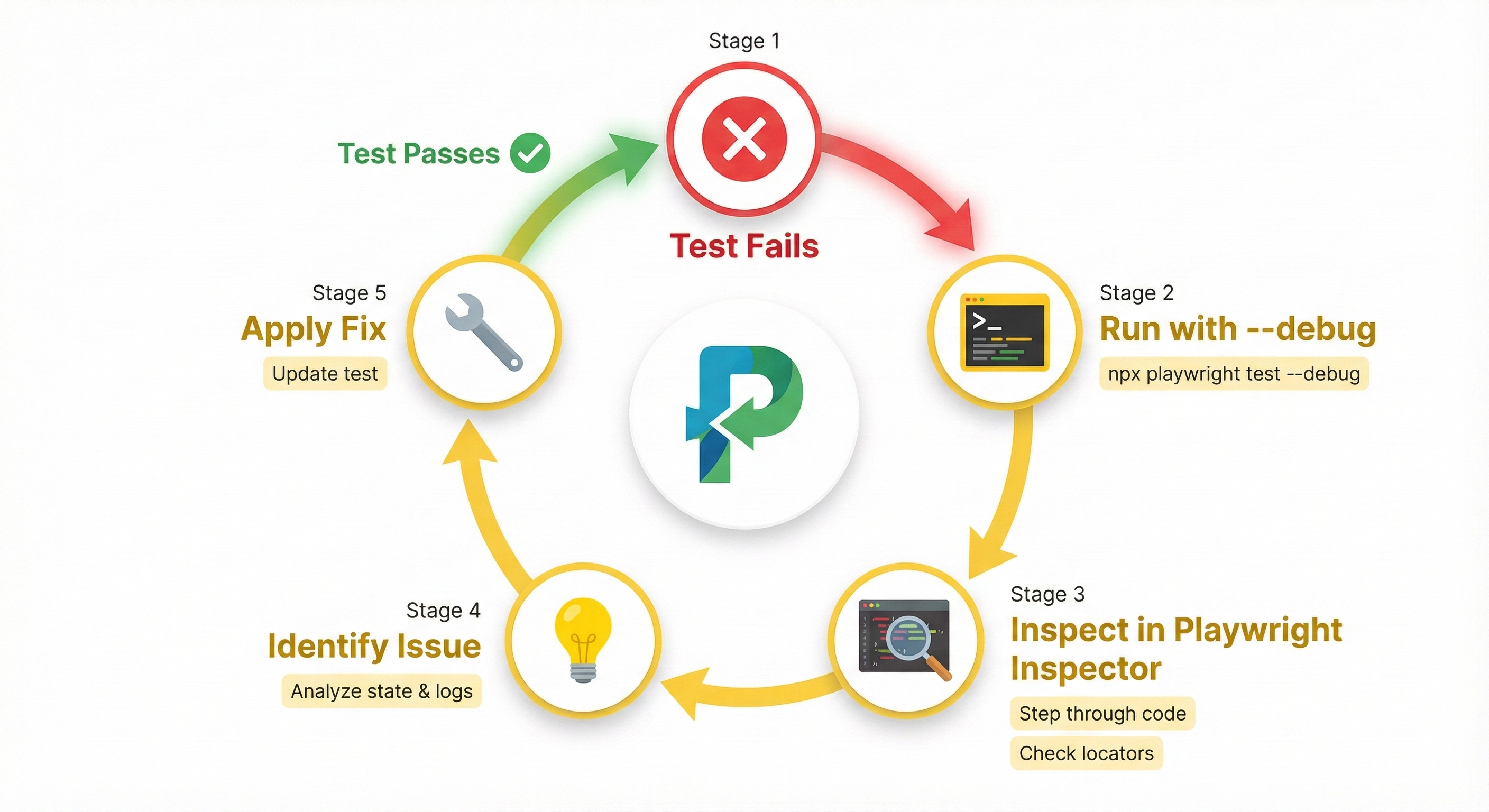
When a test fails, Playwright gives you multiple tools to understand why.
Playwright Inspector
Run tests in debug mode:
npx playwright test --debugThis opens the Playwright Inspector. It pauses before each action, shows the exact locator being used, highlights the element in the browser, and lets you step through line by line. You can evaluate locators in the console to verify they match what you expect.
Trace Viewer
The config earlier enabled traces on first retry. When a test fails, Playwright generates a trace file. View it:
npx playwright show-trace trace.zipThe trace viewer shows:
- Each action taken (click, fill, navigate)
- Screenshots at each step
- Network requests and responses
- Console logs
- DOM snapshots
You can click any action to see the exact page state at that moment.
Screenshots and Videos on Failure
Add to your config:
use: {
  screenshot: 'only-on-failure',
  video: 'retain-on-failure',
}
Failed tests save screenshots and videos to test-results/. Visual proof of what went wrong.
Using page.pause() for Step-Through
Add await page.pause() anywhere in your test:
test('debug specific interaction', async ({ page }) => {
  await page.goto('/form');
  await page.getByLabel('Email').fill('[email protected]');

  await page.pause(); // Execution stops here

  await page.getByRole('button', { name: 'Submit' }).click();
});
The browser pauses at that line. You can manually interact with the page, inspect elements, and run commands in the Playwright Inspector.
CI/CD Integration
Run Playwright tests in GitHub Actions to catch bugs before deployment. For Vercel users, check out our Vercel preview deployment testing strategy.
Create .github/workflows/playwright.yml:
name: Playwright Tests
on:
  push:
    branches: [ main, dev ]
  pull_request:
    branches: [ main ]

jobs:
  test:
    timeout-minutes: 60
    runs-on: ubuntu-latest

    steps:
    - uses: actions/checkout@v4

    - uses: actions/setup-node@v4
      with:
        node-version: 18

    - name: Install dependencies
      run: npm ci

    - name: Install Playwright Browsers
      run: npx playwright install --with-deps

    - name: Build React app
      run: npm run build

    - name: Run Playwright tests
      run: npx playwright test

    - uses: actions/upload-artifact@v4
      if: always()
      with:
        name: playwright-report
        path: playwright-report/
        retention-days: 30
This workflow:
- Installs dependencies
- Installs Playwright browsers
- Builds your React app
- Runs all tests
- Uploads HTML report as artifact (visible in GitHub Actions UI)
Parallelization: Playwright runs tests in parallel by default. In CI, it uses one worker. For faster runs, increase workers in your config:
workers: process.env.CI ? 4 : undefined,Handling headless mode: Playwright runs headless in CI automatically. No changes needed.
Best Practices
Quick reference for writing maintainable Playwright tests:
Use accessibility-focused locators: getByRole(), getByLabel(), getByText() are resilient to UI changes. Avoid CSS selectors.
Never use hard-coded waits: page.waitForTimeout(3000) makes tests slow and flaky. Use assertions that auto-wait: expect(locator).toBeVisible().
Test user flows, not implementation details: Don't test that useState was called. Test that clicking a button changes visible text.
Mock external APIs: Don't hit real endpoints. Use page.route() to provide predictable responses.
Keep tests independent: Each test should run in isolation. Don't rely on state from previous tests. Use test.beforeEach() for setup.
Use Page Object Model for complex apps: When you have many tests for the same page, extract locators and actions into a class. For larger projects, consider implementing a Page Object Model to organize your tests effectively. Example:
class LoginPage {
  constructor(private page: Page) {}

  async login(email: string, password: string) {
    await this.page.getByLabel('Email').fill(email);
    await this.page.getByLabel('Password').fill(password);
    await this.page.getByRole('button', { name: 'Sign In' }).click();
  }

  async expectErrorMessage(message: string) {
    await expect(this.page.getByText(message)).toBeVisible();
  }
}
This reduces duplication and makes tests easier to maintain.
Conclusion
You now have everything you need to test React applications with Playwright. You know how to set up Playwright in a Create React App project, write tests using resilient locators, handle React-specific features like hooks and routing, mock APIs for predictable tests, and debug failures when they happen.
Start small. Pick one critical user flow (login, checkout, signup). Write a test. Run it. Watch it catch a bug you didn't know existed. Then add more.
The confidence you gain from end-to-end tests is worth the investment. Your unit tests tell you components work in isolation. Playwright tells you your app works for users.
Next steps:
- Add Playwright to your current React project
- Write one test for your most critical user flow
- Set up CI to run tests on every commit (see our regression testing strategies)
- Gradually expand coverage to other flows
- Consider autonomous testing with AI to reduce maintenance
Resources:
- Playwright Documentation
- React Testing Best Practices
- Playwright Discord Community
- Test Automation Frameworks Guide - Compare Playwright, Selenium, and Cypress
The tools are ready. Your app is waiting. Start testing.
Frequently Asked Questions
What is Playwright and why use it for React testing?
Playwright is an end-to-end testing framework that runs your React app in real browsers (Chrome, Firefox, Safari) and simulates actual user interactions. Unlike unit tests with Jest and React Testing Library that test components in isolation, Playwright tests complete user flows to catch integration bugs that only appear when components, routing, and APIs work together.
Frequently Asked Questions
Run npm init playwright@latest in your project root. This installs Playwright, creates a config file, and sets up a tests directory. Then add a webServer configuration in playwright.config.ts to automatically start your dev server (npm start) before running tests.
React Testing Library tests components in isolation using jsdom (a simulated browser environment). It's fast and great for unit testing. Playwright tests your entire app in real browsers with real user interactions, catching integration issues like routing bugs, API integration problems, and cross-browser compatibility issues that unit tests miss.
Don't test hooks directly. Test what users see after the hook runs. If a component uses useEffect to fetch data, navigate to the page and wait for the data to appear using assertions like expect(page.getByText("data")).toBeVisible(). Playwright's auto-waiting handles the async nature of hooks automatically.
Timeout errors usually mean you're waiting for something that never appears, or you're using too short a timeout. Solution: Remove custom timeout overrides (Playwright's default 30s is usually enough), wait for loading states to disappear before checking for content, and ensure you're waiting for the right element with proper locators.
Use page.route() to intercept network requests before navigating to the page. Set up routes before navigation so they're ready when React components make API calls in useEffect. Example: call page.route("**/api/users") with a callback that uses route.fulfill({ body: "[]" }), then navigate with page.goto("/users").
Click navigation links and wait for both URL change and content to load. Use await expect(page).toHaveURL("/products") to verify the URL, then await expect(page.getByRole("heading")).toBeVisible() to confirm content rendered. This ensures both routing and data loading completed.
Flaky tests fail randomly due to timing issues. Fix them by: using Playwright assertions (expect(locator).toBeVisible()) instead of getting values directly, never using waitForTimeout(), waiting for elements to be enabled/visible before interacting, and setting up API mocks before page navigation.
Yes. When you run npm init playwright@latest, select TypeScript. Playwright fully supports TypeScript with complete type definitions. All the code examples in this guide use TypeScript. You get autocomplete, type checking, and better IDE support.
Create a GitHub Actions workflow that installs dependencies, installs Playwright browsers with npx playwright install --with-deps, builds your React app, and runs npx playwright test. Tests run headless automatically in CI. Upload the HTML report as an artifact so you can view results in the GitHub UI.
Run npx playwright test --debug to open Playwright Inspector, which pauses before each action and lets you step through tests. Use npx playwright show-trace trace.zip to view traces showing screenshots, network requests, and DOM state at each step. Add await page.pause() in your test to stop execution at a specific point.
Use locators in this priority: getByRole() for buttons, links, headings (most resilient), getByLabel() for form inputs, getByText() or getByPlaceholder() for visible text, getByTestId() when you control the markup, and CSS selectors only as a last resort. Accessibility-focused locators survive CSS and DOM structure changes.


